 Product Description
  Price Search
  Combine LLMs & Vision
  Fine-tune & Deploy
 How to Train an Object Detection Model With One Click
Define, optimize and deploy to API your custom object detection model without coding.

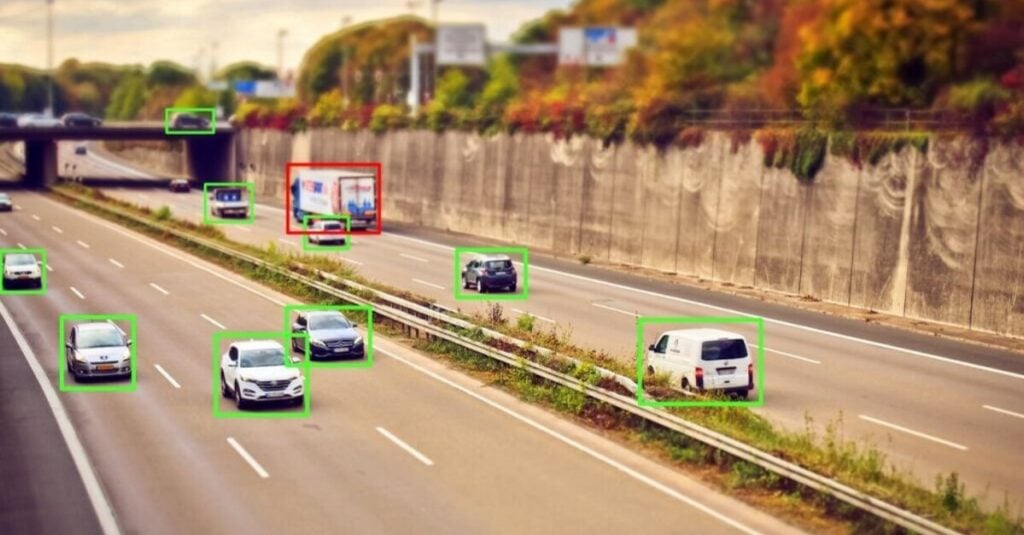
With our Object Detection service, you are able to train models for finding objects on your images. Ximilar’s platform allows you to combine Recognition and Detection models in one workflow through the Flows. In one click, without a single line of code! Let’s take a look at how to train a basic object detection task in Ximilar App.
Introducing Custom Object Detection on Click
We are glad that you love our Computer Vision Platform, which helps you effectively build classification and tagging models. Over time, we have received a lot of messages that you are missing a service for training object detection models.
We have spent a lot of time on it, and we know why – making your life easier when building such models. Training detection models of good quality can be quite challenging, and we wanted to be sure to deliver the best solution possible.
What Is Object Detection
The difference between image recognition and detection is the following: in recognition, we are interested in whether a feature or an item is present on our image.
But in real-life use cases, there could be many of these items in the image and one would like to know their count and positions. This is exactly the task for object detection. Object detection models can predict the exact locations of items in the form of bounding boxes (rectangles around the objects) or polygons.
If you want to know more about the technology behind it, read the blog post by our machine learning engineer Libor Vaněk.
Creating Your Object Detection Model Step-by-Step
Below is a simple guide on how to create and train your first object detection task via Ximilar App. The entire process can also be done via our REST API, with comprehensive documentation at hand.
1. Login to Ximilar App
New to the platform? Our First Steps Guide walks through account setup and API access.
2. Define Your Task (Model)
In the App, select AI Platform in the sidebar menu, and go to Object Detection. Click on Create task.
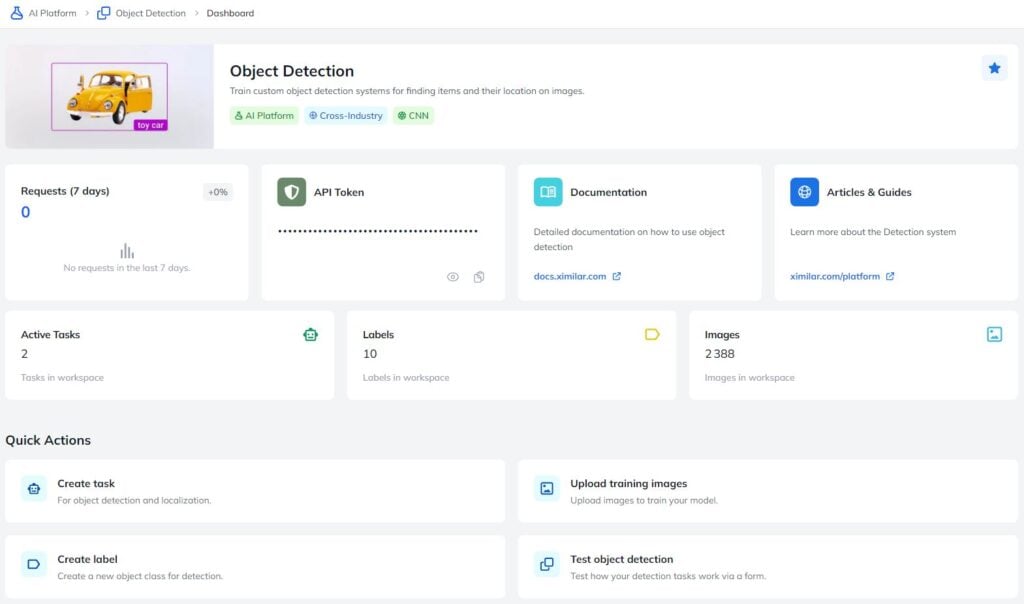
In the Task Detail, you can set the name and optional description. After that, you need to create detection labels. Here’s an example of one of my labels:
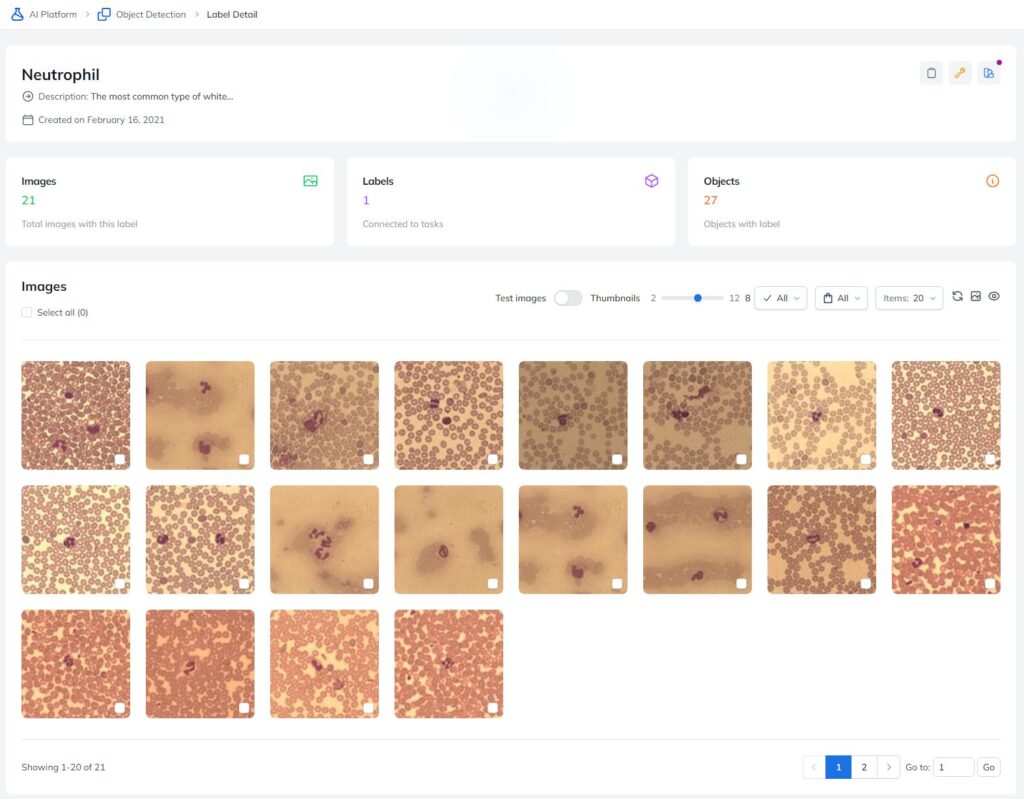
After creating labels, your task definition is complete.
3. Upload Your Data
Next, you will need to upload and annotate your training image dataset. The upload can be done manually in Images or via API. If you already have your dataset with bounding boxes on your local computer, you can use Ximilar Client to upload them.
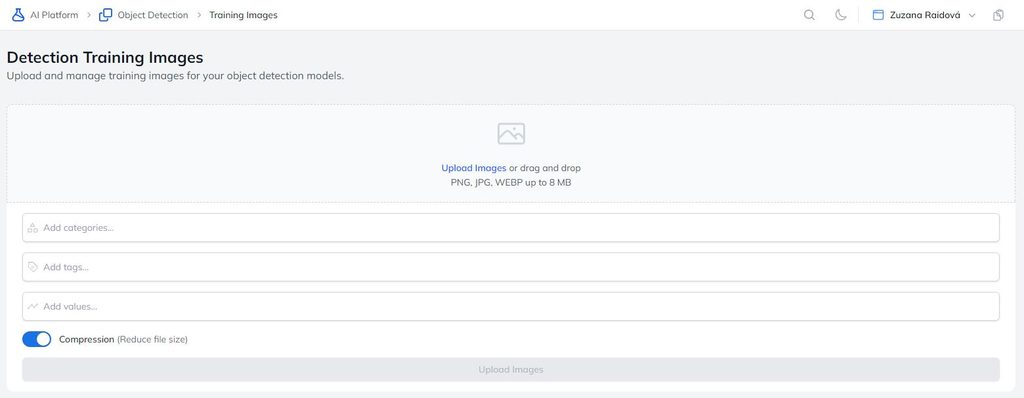
As with the Image Recognition service, we recommend starting with a small dataset of about 50 images per label and then increasing the counts.
4. Annotate Your Images
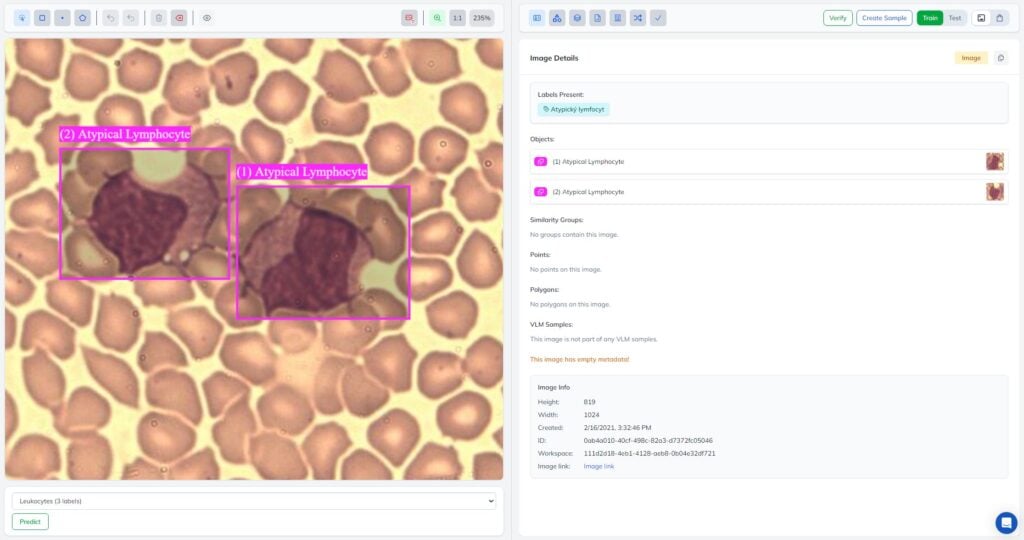
Each image in an object detection training dataset needs to be annotated, meaning the objects of interest are marked by bounding boxes or polygons. This can be done directly in Training Images and in a dedicated tool called Annotate, both within Ximilar App. Here’s how it looks under Training Images:
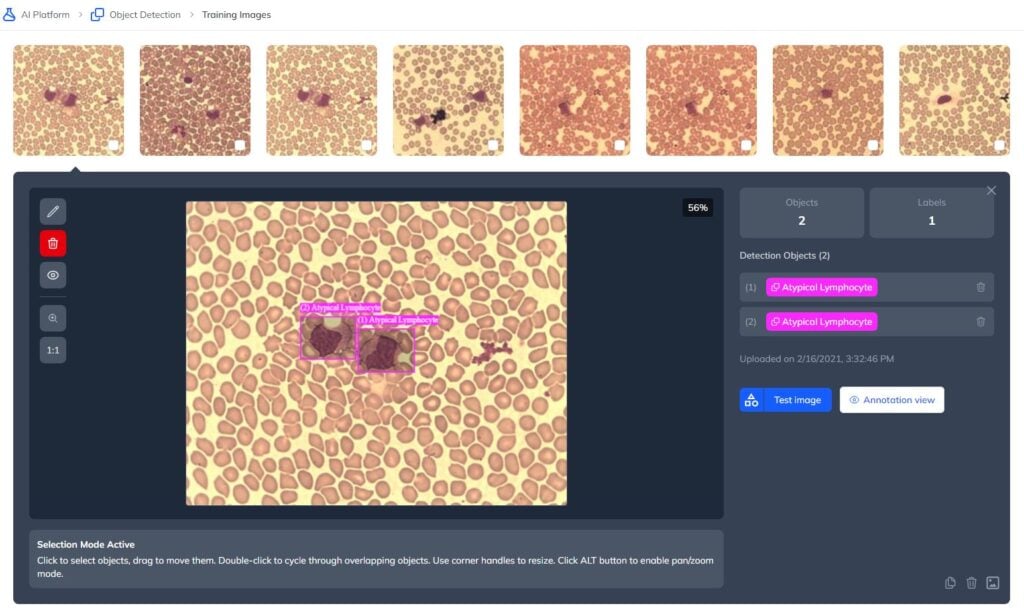
And here’s the detailed annotation view in Annotate. The annotation is partially automated via AI prediction – try it by clicking on Predict.
5. Train the Model and See the Results
Once your training collection is ready, click the Train button in the Task Detail. Training will take some time (up to several hours), so make a coffee and relax.
Here’s an example of my trained task with labels and training images already added. As you can see, there is only one trained version of the model. You can gradually upgrade and iterate your task by training new models, with auto deploy of the newest model set by default.
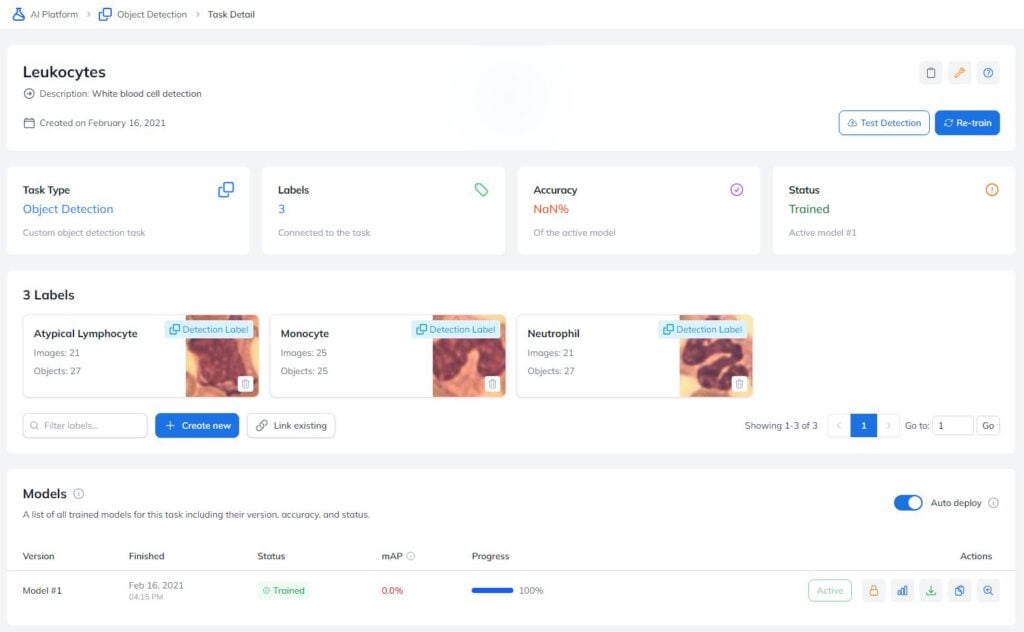
After the model is successfully optimized, you can test it directly in the Ximilar App, or use it as an endpoint via the API or with Ximilar Client.
Iterating: Upload More Data
There is a good chance that after the first round, your model will require more images and objects. However, you already have some semi-perfect models trained, and you can use them to help you annotate more training images.
Before training, the Object Detection service automatically splits your training images into actual training images (80%) and testing images (20%). The training set is used to teach the model, while the testing set is used to evaluate its performance through metrics such as accuracy, precision, and recall.
Flows With Object Detection
This is our most powerful feature right now. You can build a really complex computer vision system by connecting detection and recognition models into a single API endpoint. Imagine first detecting individual items on the image and then recognizing their attributes. This is possible with the new Flows action “Object Selector”. What are the example use cases?
- detect all the items on a production line and identify if they have a defect or not
- detect fashion products on people and recognize all their attributes
- find the exact position and recognize tooth decay
- count and classify all the cars from the parking camera
- object recognition for quality control, insurance damage and cost prediction
- and many more
Tell Us About Your Ideas
Object detection training doesn’t have to mean writing a single line of code or waiting weeks for a model. Here’s why teams build on Ximilar:
- Straightforward UX – from creating a task to training a model, the whole flow is designed for people without a machine learning background.
- State-of-the-art architectures under the hood, tuned for strong accuracy out of the box.
- Affordable pricing, with model downloads for offline use available on our higher pricing plans.
- Flows integration – chain detection with recognition models (e.g., detect an item, then classify its attributes) through the Flows service, in a single API call.
- Configurable augmentation settings to squeeze out extra performance during training.
- Continuously maintained and improved, since we run the same platform in our own products.
Have an idea for a custom computer vision project? Contact us and we’ll set up a call.

Zuzana Raidová
Head of Marketing
Zuzana is a marketing specialist, biologist, and illustrator addicted to reading and hiking. At Ximilar, she takes care of web content and communication, tries to keep the articles engaging, and the office temperature low. She likes science, kung fu movies, and rain.
Tags & Themes
Related Articles

Hololive Card Recognition for Card Scanners & Collector Apps
Ximilar’s AI now identifies every hololive OFFICIAL CARD GAME (hOCG) card – name, set, rarity, and more – in English and Japanese.
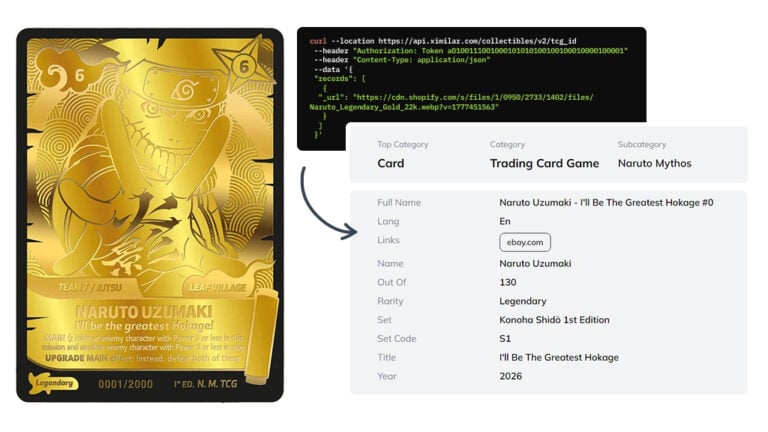
Naruto Mythos Card Recognition by TCG AI
Ximilar’s card recognition AI now identifies English Naruto Mythos TCG cards – name, set, rarity, and other details returned directly from the API.
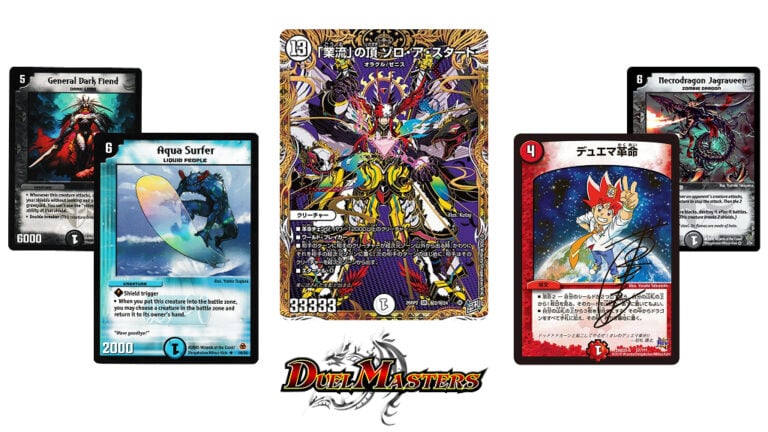
Duel Masters Card Recognition – Now in Our TCG AI
Our card recognition AI now scans and identifies Japanese Duel Masters trading cards in a single REST API response.