 Product Description
 Price Search
 Combine LLMs & Vision
 Fine-tune & Deploy
 Instance Segmentation
How to Fine-Tune a Multimodal Embedding Model for RAG and Retrieval
Fine-tune an embedding model on your own images and text to improve domain-specific retrieval in RAG applications, then run it offline.

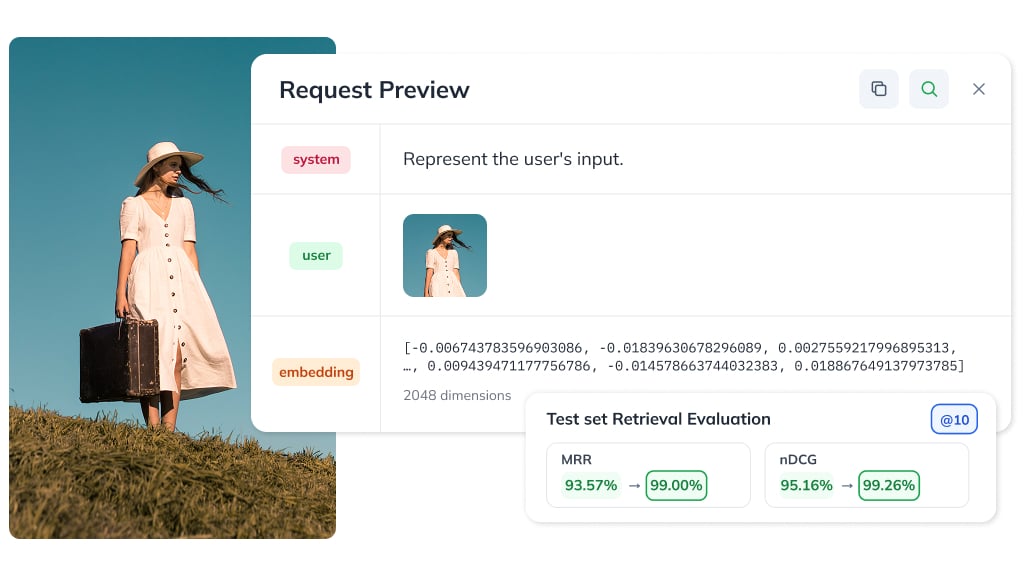
Large Language Models (LLMs) have taken the world by storm. If you are building a business and want to iterate quickly, you are likely using the latest models from OpenAI, Anthropic, or an open-source alternative.
In search and Retrieval Augmented Generation (RAG), however, results are only as good as the embedding model that retrieves them. With Ximilar, you can now fine-tune an embedding model on your own images and text without writing code.
The Vision Language Platform
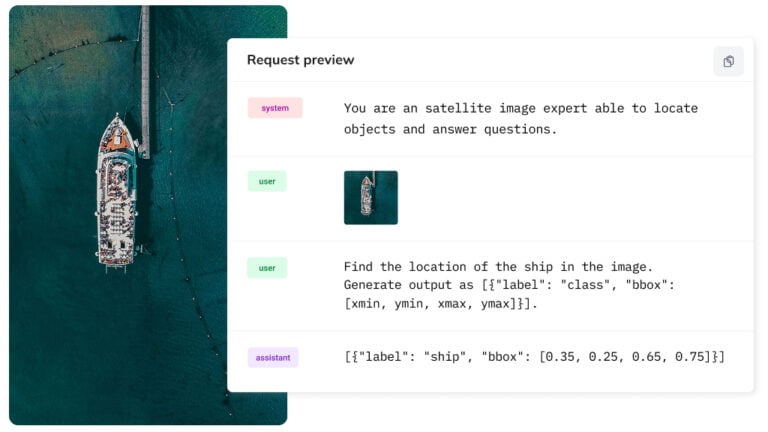
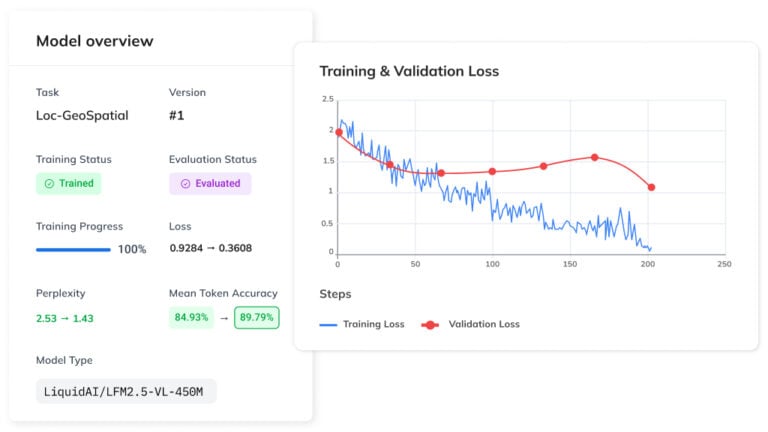
Over the past few months, we have expanded our AI platform to let users train their own Vision-Language Models (VLMs), including:
- Instruction fine-tuned models – models that get a query (instruction) and answer it according to your data
- Agentic fine-tuned models – models that can reason and call external tools to complete a task
As our guide to LLM fine-tuning platforms and tools shows, most fine-tuning platforms focus on text-only models. Meanwhile, industry giants are heavily focused on training massive foundation models. They often lack the capacity or financial incentive to let you easily adapt those models to your proprietary data.
Ximilar takes a different approach. We help you train smaller, specialised models on your own data, which you can download and run in your business without the cost of a massive model. Until now, the missing piece of this puzzle was the ability to fine-tune embedding models.
Embeddings are incredibly powerful. When paired with vector databases, they form the engine behind highly accurate RAG systems. That is why the Ximilar platform now supports embedding fine-tuning, including multimodal embedding models that understand both images and text.
Read the series
What Is an Embedding Model?
An embedding model translates data – words, sentences, images, videos or entire documents – into a format that computers can natively understand: arrays of numbers called vectors. Instead of relying on exact keyword matches, these models capture the underlying semantic meaning and context of the input.
When two pieces of information are conceptually similar, their vectors sit close to each other in a high-dimensional space. This mathematical representation allows AI to instantly recognise relationships between concepts. It forms the foundation for semantic search, recommendation engines and data clustering.
Because vectors are mathematical, you can easily compare them with metrics such as cosine similarity. You can then build incredibly fast search systems on top of them.
A text embedding model works with text only. A multimodal embedding model, on the other hand, maps images and text into the same embedding space. As a result, a text query can find a matching photo, and a photo can find a matching product description.
What Is RAG Search?
RAG is a framework that safely connects LLMs to your private, up-to-date data. Without it, an LLM relies on its static, pre-trained memory, which often leads to made-up answers or “hallucinations”.
A RAG system first searches your proprietary documents for the exact information needed, using an embedding model and a vector database. It then feeds those retrieved snippets to the LLM as context and instructs it to generate an answer based only on that verified data. Some setups also add reranker models, which re-score the retrieved snippets before they reach the LLM.
Essentially, RAG gives your AI a reliable, searchable reference library to consult before it responds to a user. The embedding model sets the ceiling for retrieval quality. If it retrieves the wrong snippets, even the best LLM cannot give a correct answer.
RAG and fine-tuning aren’t rivals. RAG feeds the LLM fresh facts, and fine-tuning the embedding model makes sure they are the right ones.
Why Fine-Tune an Embedding Model?
Off-the-shelf models are trained on broad, general-purpose data. They handle everyday language well, but they often miss the distinctions that matter in your domain. For example, a general-purpose embedding model may place two similar dresses, two contract clauses or two spare parts right next to each other. Your users, however, see them as different items.
Fine-tuning an embedding model lets you teach the model your own notion of similarity. You show it which queries and documents belong together, and it learns to place them close to each other. Fine-tuning adapts an existing model instead of training a model from scratch, so it needs far less data. Relevant results then move up the list, which can improve retrieval performance and RAG performance alike.
You also don’t have to rely on an embedding API from external model providers. A compact, domain-specific model can run on your own hardware, so your data never leaves your network.
That said, fine-tuning isn’t always necessary. If an off-the-shelf baseline model already ranks the right documents at the top, start with it. Fine-tune when it misses distinctions your users care about. Before that, you can also try a larger off-the-shelf model, combine keyword and vector search, or add a reranker.
Use Cases for Custom Embedding Models
A fine-tuned embedding model helps wherever people search your own data: in online shops, document archives or RAG applications. A few examples:
- E-Commerce Search: Help shoppers find exact fashion pieces, home decor, and more by uploading a photo or typing natural descriptions (like “boho summer dress”). The model matches visual style and intent instead of relying on keywords.
- Legal & Finance: Search through thousands of confidential contracts, tax files or financial reports offline. Sensitive data never leaves your internal network.
- Customer Support: Connect internal knowledge bases and technical manuals to AI chatbots, so support teams can instantly get verified, accurate answers.
- Healthcare & Research: Allow medical staff to instantly pull up relevant patient records, lab results or research papers by searching for concepts rather than exact medical terms.
How to Fine-Tune a Multimodal Embedding Model Without Coding
Our platform allows you to train your own custom AI models on your data and deploy them on your local machine. It is primarily a no-code platform, but you can also access it via API. In addition, we are currently working on bringing the VLM platform to our Model Context Protocol (MCP) server.
Most guides to fine-tuning embedding models walk you through Python code with Sentence Transformers, a framework for using and training embedding models from Hugging Face. On Ximilar, you can do the same without writing code. The workflow mirrors how you fine-tune a vision language model for instruction tasks – only with a retrieval dataset instead of prompts.
Let’s build, for example, an AI model that embeds fashion images and their metadata. With such a model, you can easily build your own search engine for fashion items.
1. Create Your First Retrieval Task
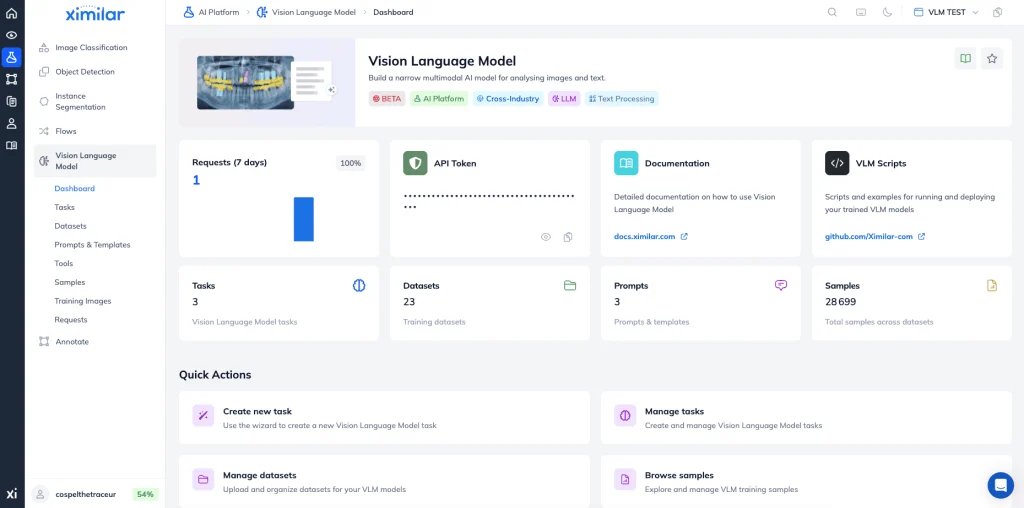
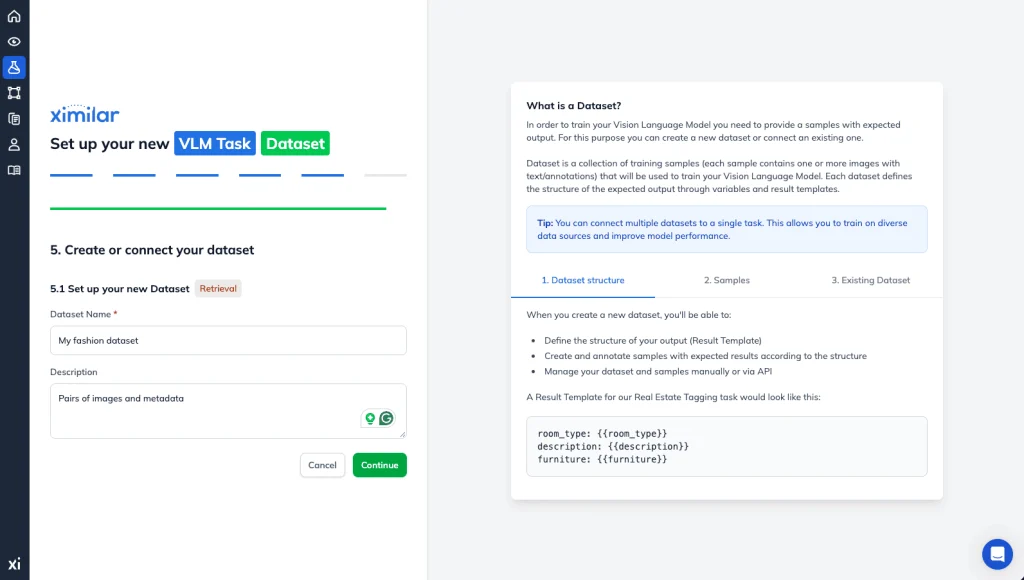
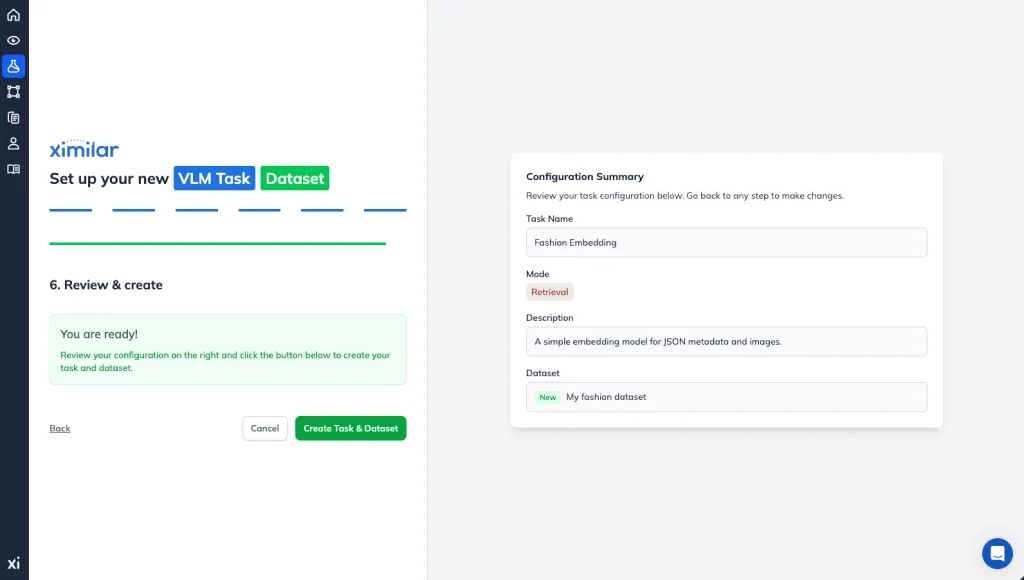
Let’s start training your embedding model. Go to the AI Platform and click Vision Language Model in the left menu to open the dashboard. Then click the first item in the Quick Actions section: Create new task.
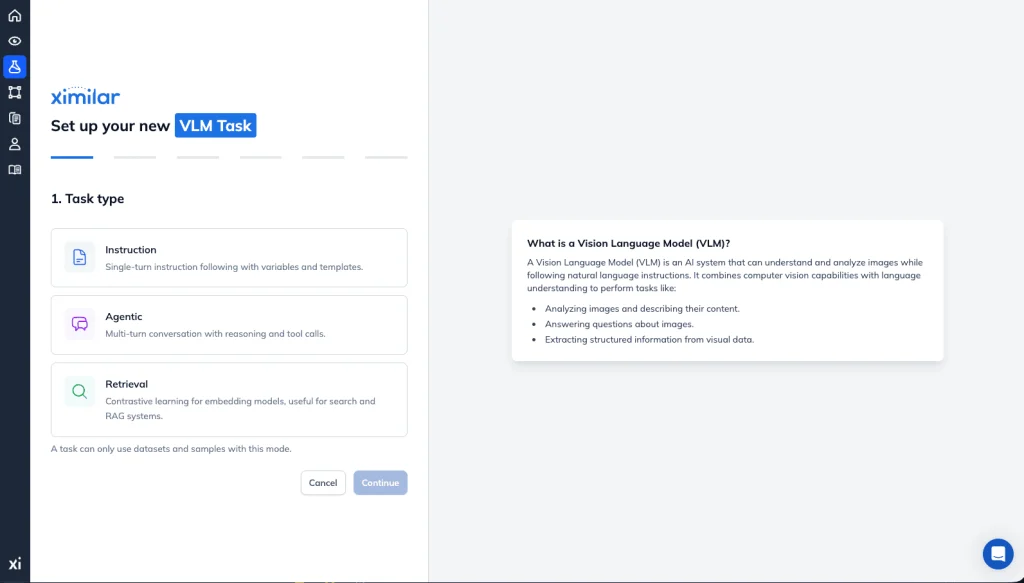
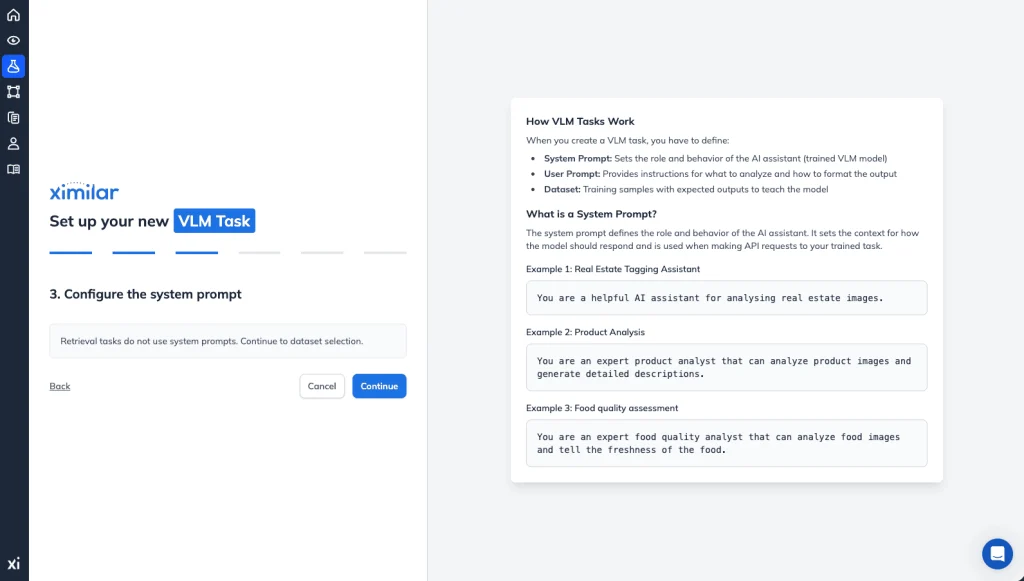
This opens a wizard that guides you step by step through setting up your custom AI model. Select the retrieval type for the model and enter a name and description. Finally, choose the Create a dataset option.

2. Base Model and Fine-Tuning Method Selection
After task and dataset creation, you will be redirected to the Task view. A task represents the configuration of your AI model.
Here, you can choose between two base models: Qwen3-VL-Embedding-2B and Google EmbeddingGemma 2. For this guide, I use Qwen3-VL-Embedding-2B, which turns each item – text, an image or both – into a vector with 2,048 embedding dimensions. You will see one of these vectors later in the request preview.
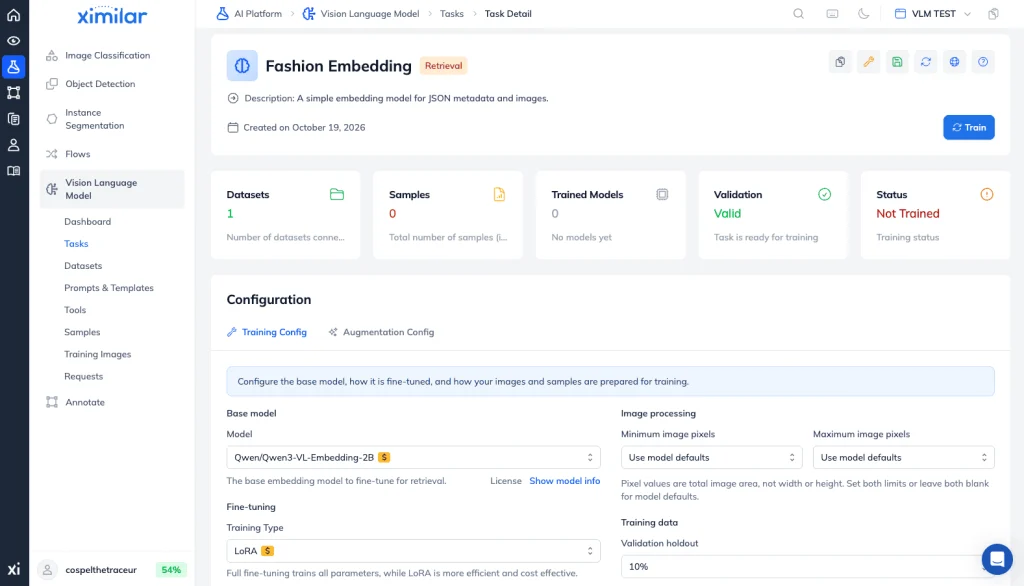
You can also decide whether to use full fine-tuning or Low-Rank Adaptation (LoRA) fine-tuning. Full fine-tuning optimises every parameter of the model. We recommend it only if you have a large dataset (e.g., 10,000 samples or more). For this guide, we will use LoRA fine-tuning. Instead of optimising the entire model, LoRA injects small matrices into the model and optimises only those. This makes model training faster and cheaper.
3. Build Your Retrieval Dataset
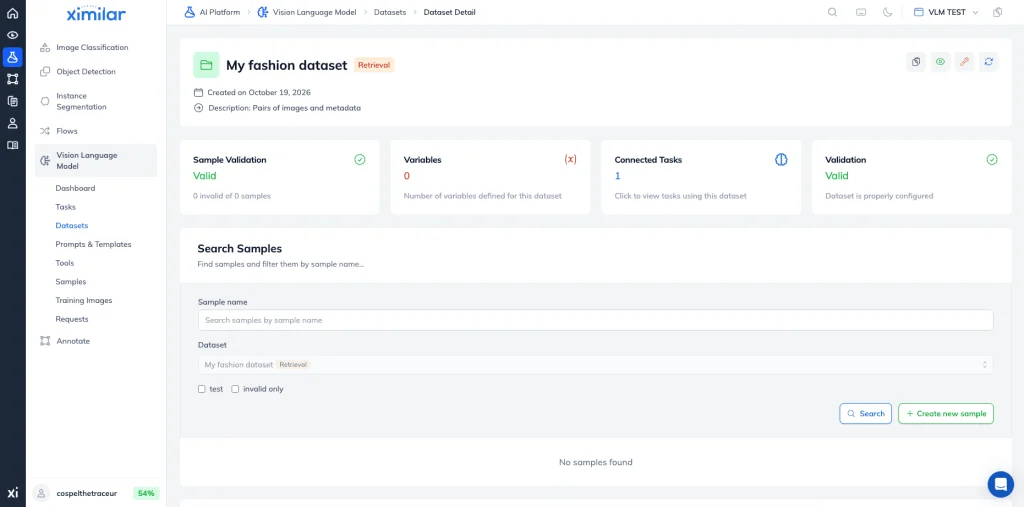
At the bottom of the task page, you will find the Connected Datasets section. You can connect multiple datasets to a single task. When you click the Train button, the model trains on all of them. To enter the Dataset page, click the View action button.
Right now, we have one connected dataset, but it is empty. The dataset page for retrieval models is quite simple: a table with your samples. Let’s create the first sample by clicking the + Create new sample button.
Anchors, Positives and Hard Negatives
For a retrieval dataset, each sample pairs an Anchor (green) with a Positive (blue). Simply put, the model learns that the Anchor (JSON text in our case) and the Positive (an image) should produce similar embeddings that sit close together in the vector space. Because we are using Vision-Language Models – an extension of standard LLMs – the anchor can contain both images and text if needed.
Multimodal anchors are a key difference from classic Contrastive Language-Image Pre-training (CLIP) fine-tuning. CLIP encodes images and text with two separate encoders. Qwen3-VL-Embedding-2B, by contrast, fuses the text and images of one item into a single embedding.
You can also add negatives – documents that do not match the anchor. An anchor, a positive and a negative together form a triplet, the classic training unit for retrieval models. Hard negatives look similar to the positive but are wrong. They are especially valuable, because they push the model to pick up finer distinctions.
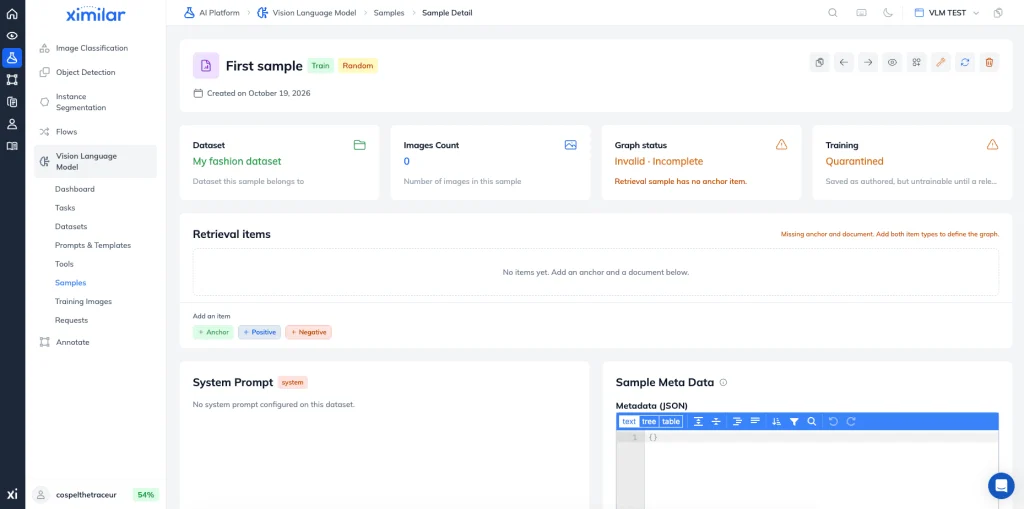
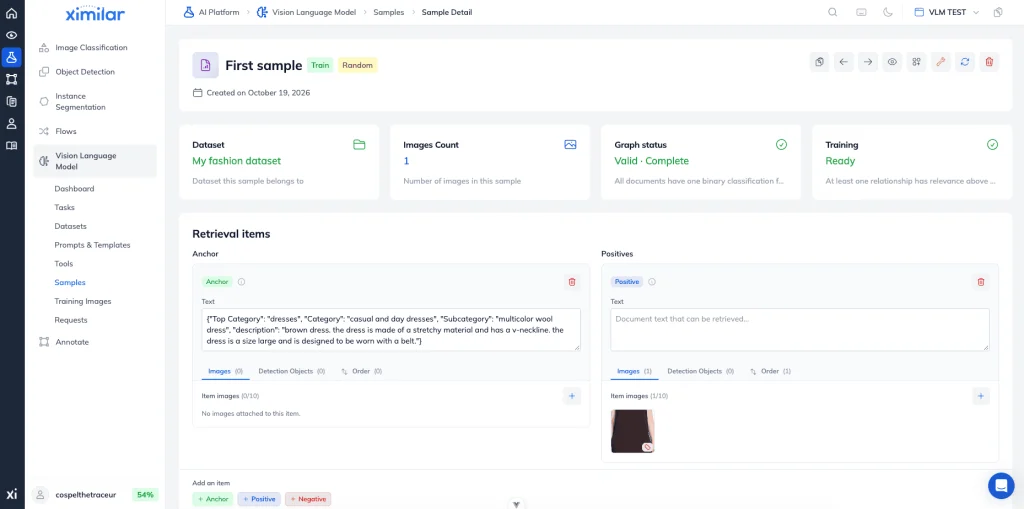
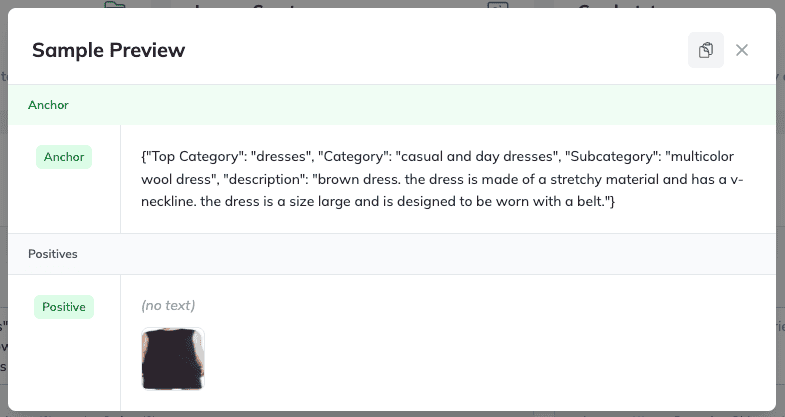
For fine-tuning any LLM, we recommend at least a thousand samples – the more, the better. The platform itself needs at least 20 anchors with a positive document before you can start training. Right now, we only have one sample.
If your training data is already prepared, you can populate your fine-tuning dataset much faster through our API, using the retrieval_item and retrieval_edge endpoints (see the retrieval dataset documentation).
4. Train and Evaluate the Fine-Tuned Model
Once you have enough data, you can start training the model from the Task view. The platform automatically selects the optimal GPU for your task.
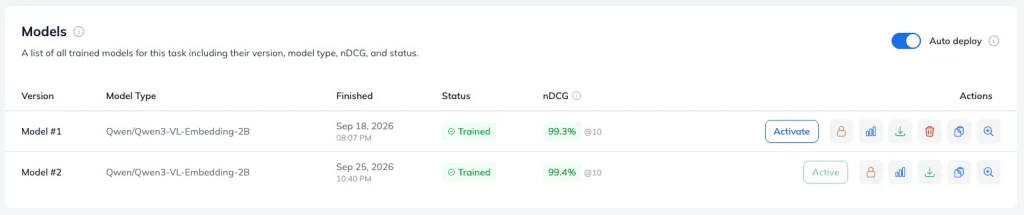
Fine-tuning large models can take hours, or in some cases even days, so patience is key. The Models table on the task page shows each model’s status. Once the model is trained, you will see a green status. Click on it to download the model or to inspect how the model performs on your dataset.
You can also get train_status for each of your models via API. The finished_date stays null while training is running. Learn more here.
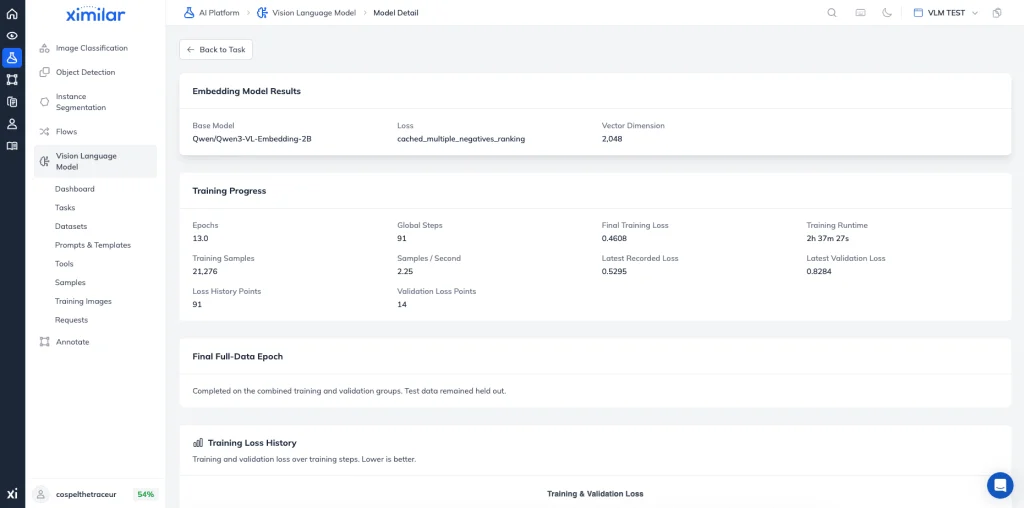
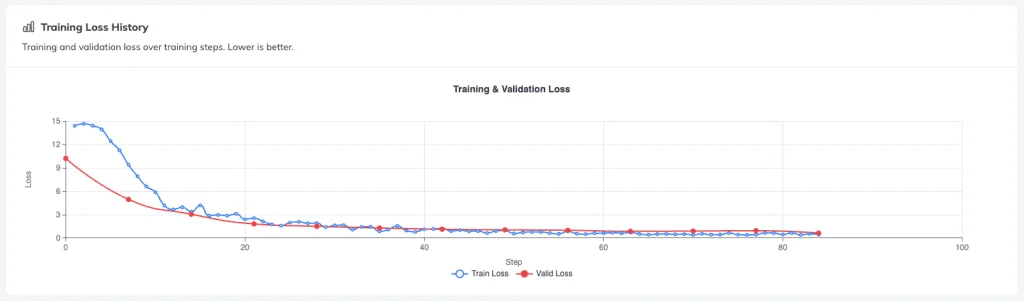
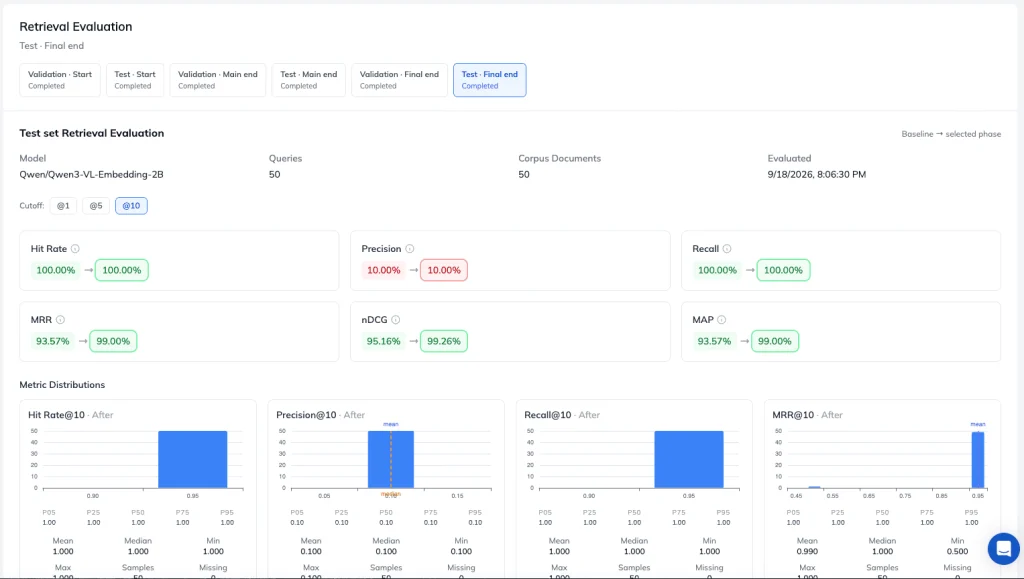
The platform provides comprehensive evaluation metrics to keep the training process fully transparent. It displays the loss function for both the training and validation sets.
It also shows retrieval metrics – hit rate, precision, recall, Mean Reciprocal Rank (MRR), Normalized Discounted Cumulative Gain (nDCG) and Mean Average Precision (MAP) at cutoffs of 1, 5 and 10 – and compares the results before and after training, so you can see how the fine-tuned model beats the baseline. You can also read the metrics through the API.
5. Generate Embeddings and Run the Model Offline
Now let’s test the trained retrieval model on the Requests page in the Ximilar app. Click the Create Request button, select your task and fill in images or metadata. Then click Submit request in the modal.
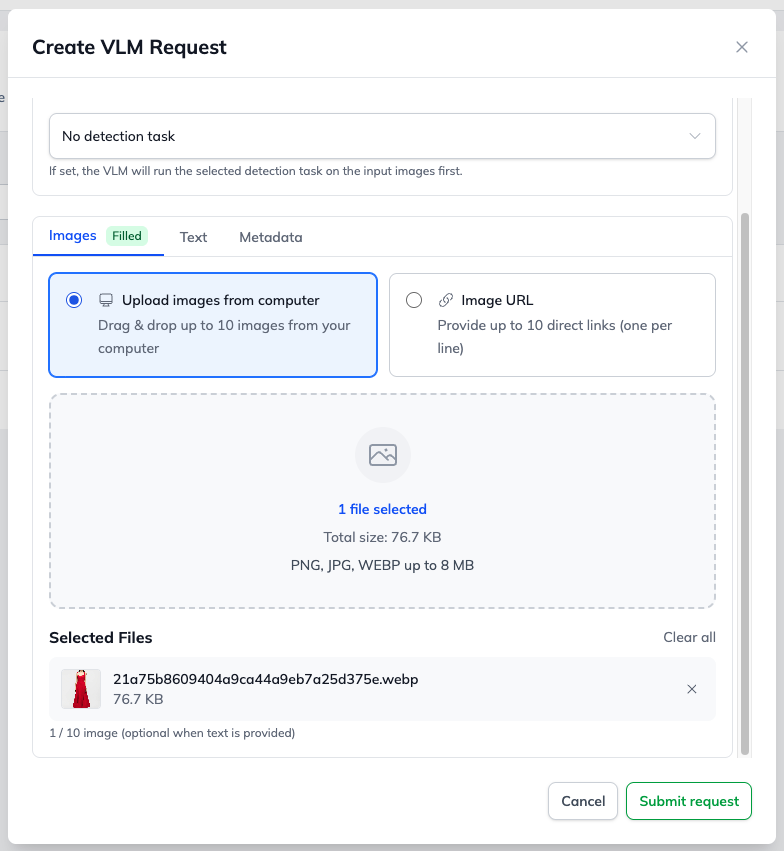
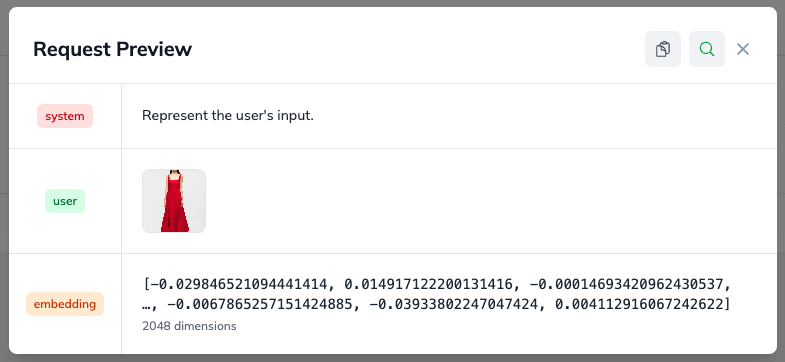
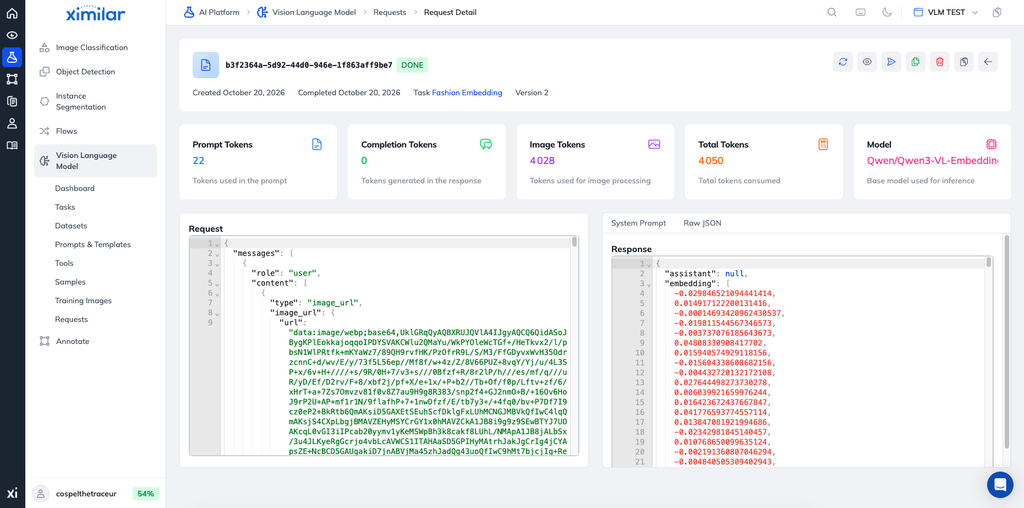
The most powerful feature comes after training and evaluating the model: you can download it and use it completely offline. Connect it to your local environment to create embeddings for your private documents. This is especially handy if your use case involves sensitive data and your inference data cannot leave your production environment.
To help you run these models, we have prepared a GitHub repository with simple scripts:
https://github.com/Ximilar-com/vlm-scriptsOpen your trained model in the Ximilar app, click Download, and copy the download link (which is valid for 24 hours). Then clone the repository and run the following (you need uv installed – see the repository’s README):
$ cd transformers
$ export MODEL_DOWNLOAD_DIRECTORY=./stored
$ export MODEL_URL_HF_QWEN3_VL_EMBEDDING_2B='https://...'   # your copied link
$ uv run models/Qwen3-VL-Embedding-2B/run.py
>
  Processing query
  Input tokens: 27
  Processing document
  Input tokens: 397
  Query embedding shape: (1, 2048)
  Document embedding shape: (1, 2048)
  Cosine similarity: 0.0219
  First 8 query values: [1.5735667943954468, 4.43557071685791, ...]
The script processes a query and a document, then prints the shape of both vectors and their cosine similarity.
Next Step: RAG Search With Your Own Model
We believe this is a unique product capable of powering many internal business search engines. We built it for companies so that, once trained, the model can be securely downloaded and used offline.
In our next blog post, we will show you how to connect your custom AI model to a search system. Together, they create a powerful service that can search your data and answer queries reliably.

Tags & Themes
Related Articles
Meet Cardloader.ai: Free Trading Card Scanner Software for PC, Mac and Linux
Cardloader.ai is free, open-source trading card scanner software for Windows, macOS and Linux. It identifies TCG cards, sports cards, comics and slabs from a folder or a document scanner.

Wake Up, Collector: Cyberpunk TCG Card Recognition Is Here
Ximilar’s card AI now recognises Cyberpunk TCG cards – name, set, and rarity from a single scan. Test it in the App, via API or the demo.

Cardstream.ai: Open-Source Card Scanner for Live Streams
An open-source card scanner for live streams. Cardstream.ai identifies TCGs like Pokémon and sports cards in real time from your video.