 Product Description
  Price Search
  Combine LLMs & Vision
  Fine-tune & Deploy
  Instance Segmentation
 Fine-Tuning a Vision Language Model With the Ximilar API
Fine-tune your vision-language model with image understanding, run it on your own hardware, and cut your per-inference token costs.

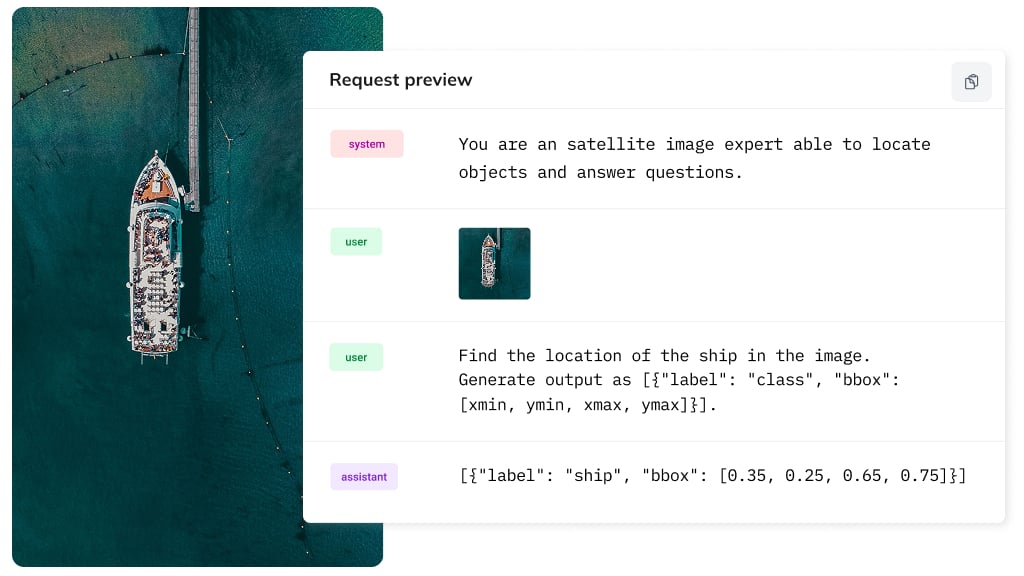
With the launch of the new Ximilar vision language model platform, businesses can now fine-tune their own VLMs and drastically cut costs on commercial subscriptions, such as OpenAI or Anthropic. In this blog post I will show you how to fine-tune a vision language model with image understanding capabilities step by step.
I will walk through the entire workflow using the Ximilar App and API to fine-tune a custom VLM that you can download and use completely freely. I will use a dataset for satellite image analysis to locate a specific object. However, you can easily apply these exact steps to any custom dataset in fashion, real estate, e-commerce, healthcare, or manufacturing.
Why Fine-Tuning a Multimodal Vision Language Model?
For simple, repetitive tasks, calling a massive foundational language model like GPT-5 or Claude Opus gets expensive fast. When you are processing thousands of images a day, per-token costs scale with your user base, but your profit margins don’t. Instead, fine-tuning a domain-specific VLM on your own custom data set and deploying it on your own hardware eliminates per-token bills and vendor lock-in. You own the model, as well as the weights, and you own your business continuity.
Most enterprise workflows don’t require a massive, multi-billion-parameter model that demands an entire data center to run.
Relying entirely on external LLM APIs also introduces massive operational risks. Cloud infrastructure is highly volatile. Providers constantly shift corporate directions, change pricing tiers overnight, use your proprietary data to train their own models, or suddenly block access over terms-of-service technicalities. Just last month, AI provider Clarifai was acquired by Nebius and discontinued its services to thousands of their customers.
A vision language model is an extension of large language models (LLMs) with a vision encoder. This multimodal AI model can process both visual and textual data simultaneously. This make it ideal for tasks that require understanding image and text together. By building a small, focused vision language model that handles exactly a few specific use cases well, you secure your pipeline.
0. Prerequisites and Environment Setup
The first step toward fine-tuning your vision language model is creating an account in the Ximilar App. One of the primary advantages of the Ximilar ecosystem is its flexibility. While this guide focuses on fine-tuning multimodal VLMs, the platform is an all-in-one computer vision toolkit. Depending on your project requirements, you can also build faster, highly optimized models for classic tasks like image classification and object detection.
https://app.ximilar.com
https://docs.ximilar.com
https://docs.ximilar.com/platform/vlm
Before we can begin fine-tuning, we need to gather our training data and set up a local development environment. For this tutorial, I will be using a satellite imagery data set hosted on Hugging Face. If you do not have an account yet, you will need to head over to Hugging Face Hub. There you can sign up to access and download the dataset samples.
We will use Python to handle the data pipeline and interact with the Ximilar API. If you are new to the language or need to set up a fresh environment, I highly recommend checking out Real Python’s comprehensive guide: How to Install Python on Your System.
To keep our project dependencies isolated and clean, it is best practice to create a dedicated Python virtual environment. To keep our project dependencies isolated and clean, it is best practice to create a dedicated Python virtual environment. You can initialize your environment and install the required libraries – including requests for API calls and datasets for downloading the Hugging Face data – by running the following commands in your terminal:
# Create a virtual environment named 'ximilar-env'
python3 -m venv ximilar-env

# Activate the virtual environment
# On macOS/Linux:
source ximilar-env/bin/activate
# On Windows:
# ximilar-env\Scripts\activate

# Upgrade pip and install required dependencies
pip install --upgrade pip
pip install requests datasets
With your environment configured and dependencies installed, we are ready to write the script that fetches the satellite images and uploads them directly to Ximilar.
1. Understanding the Dataset – VRSBench
Before diving into the finetuning process, let’s inspect the training data. We will be using VRSBench, a specialized remote-sensing benchmark dataset designed specifically to train and evaluate vision language models on satellite imagery.
The primary advantage of VRSBench is its multimodal format. Instead of just raw images, each data point contains a rich mix of bounding boxes, descriptive sentences, and question-answer pairs. A typical sample from the dataset is structured as follows:
{
   "image": "00002_0000.png",
   "caption": "An aerial view of a harbor with several ships docked along piers.",
   "objects": [{
     "obj_id": 0,
     "obj_cls": "harbor",
     "referring_sentence": "the harbor on the right side of the image",
     "obj_corner": [x1, y1, x2, y2],
     "obj_coord": [cx, cy]
  }],
  "qa_pairs": [
    {"ques_id": "Q1", "question": "How many ships are docked?", "type": "object quantity", "answer": "five"}
  ]
}
2. Defining the VLM Workflow & Use Cases
Depending on your specific business goals, you can train a model on the Ximilar platform to solve several distinct types of problems using this data structure.
Use Case 1: Object Grounding (Location Prediction)
In this tutorial, we will focus on teaching the model to take a descriptive phrase, convert it into a spatial query, and predict the exact coordinates of the target object. This use case is well suited for satellite imagery, warehouse automation, or any domain where precise object localization matters. Once trained, the inference workflow for your fine-tuned VLM will operate like this:
System:    You are a satellite image expert that
           is able to answer questions and locate objects.

User:      Find the location of: the harbor on the right side
           of the image. Generate output as            [{"label": "class", "bbox": [xmin, ymin, xmax, ymax]}].

           Generated output:

Assistant: [{"harbor": "harbor", "bbox": [0.37, 0.00, 0.80, 0.99]}]
Use Case 2: Visual Question Answering & Image Captioning
Alternatively, you can choose to train your model to describe raw imagery or answer contextual questions based on the qa_pairs field. This case covers visual question answering and image captioning tasks. Its is suitable for e-commerce product descriptions, medical imaging reports, or automated content generation:
System:    You are a satellite image expert that
           is able describe images.

User:      Describe what is on the image?
           {"answer": "str"}.

           Generated output:

Assistant: {"answer": "An aerial view of a harbor with several ships docked along piers."}
The exact problem you solve depends entirely on your fine-tuning strategy and training objectives. Whichever path you choose, keep in mind that multimodal models are data-hungry. To get reliable production results, you should aim to gather a high-quality dataset of at least 1,000 samples. The larger and cleaner your training data, the higher your model’s accuracy will be.
Now that we understand the dataset format, let’s look at how to script our data pipeline and push these samples to Ximilar.
3. Setting Up Your Dataset in the Ximilar App
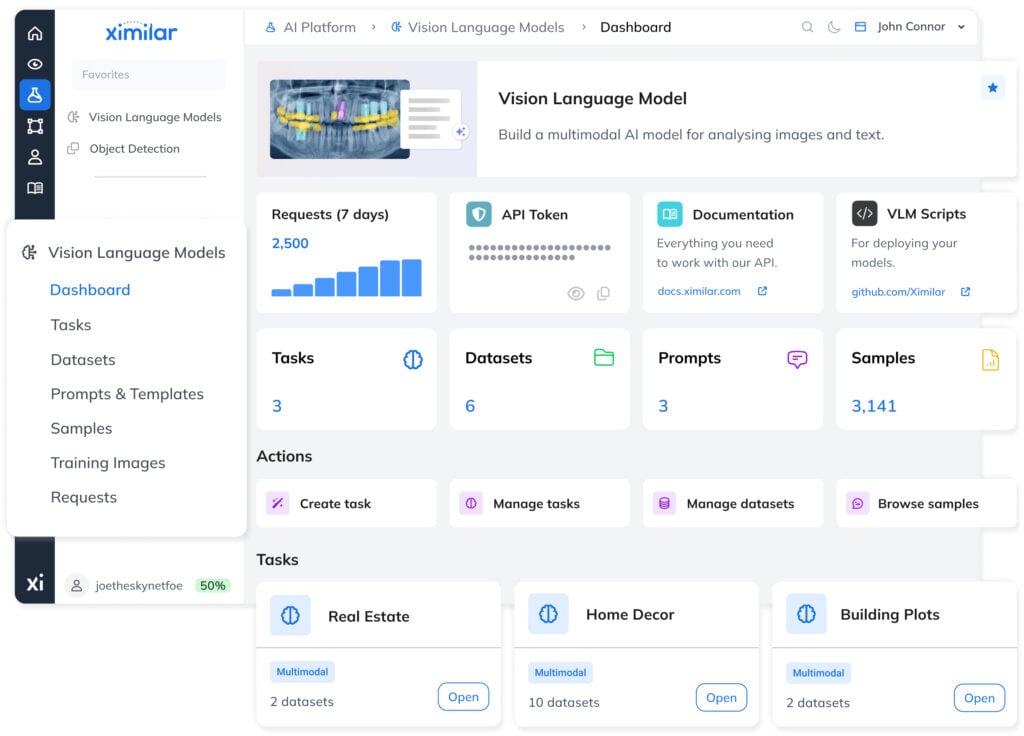
Now that our local environment is ready, let’s configure the dataset repository directly in the Ximilar interface.
- Log in to the Ximilar App.
- Click on the AI Platform icon in the left menu, then navigate to the Vision Language Model service.
- Go to Datasets / Manage Datasets and click the Create Dataset button.
- Fill in your dataset name (e.g.,
Loc-GeoSpatial) and a brief description. - Under the problem type, select the Instruction option.
Why “Instruction”? Choosing this option configures the environment for instruction fine-tuning. We will supply a specific instruction (a question asking for an object’s location), and the model will learn to generate a highly structured answer. Once created, you will be redirected to the dataset management page. Here, you need to establish three foundational elements: a System Prompt, a User Prompt, and a Result Template.
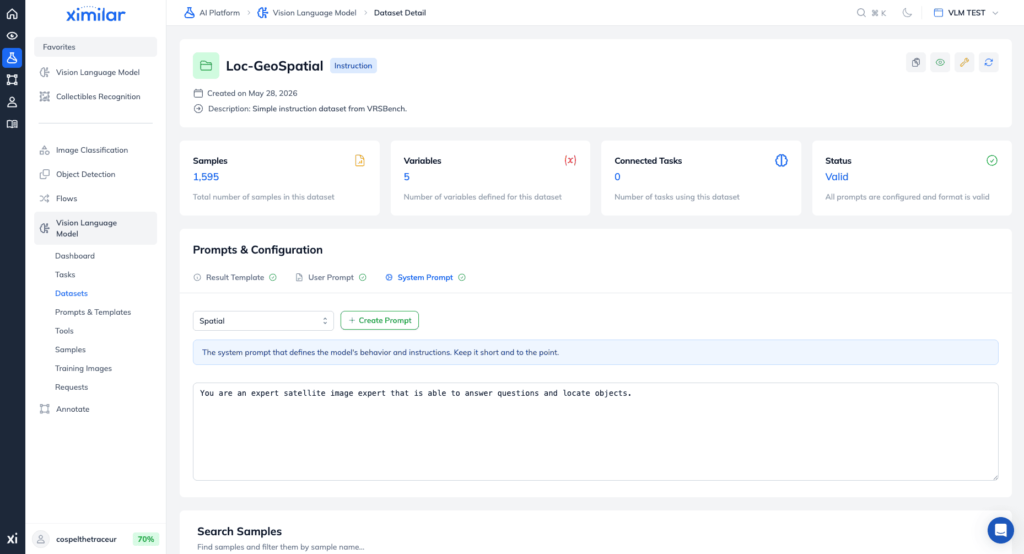
System & User Prompts
Let’s configure the System and User Prompts. These templates dictate how instructions are fed to the model during training and future inference. Set them up as follows:
System:    You are a satellite image expert that
           is able to answer questions and locate objects.

User:      Find the location of: {{question}}. Generate output as            [{"label": "str", "bbox": [xmin, ymin, xmax, ymax]}].

           Generated output:
The Result Template defines the structured schema of your training samples. It serves as a blueprint, telling the training pipeline exactly what the model’s target response should look like. Since we expect our custom VLM to output precise object boundaries like this:
[{"harbor": "harbord", "bbox": [0.37, 0.00, 0.80, 0.99]}]set your Result Template to:
[{"label": "{{label}}", "bbox": [{{xmin}}, {{ymin}}, {{xmax}}, {{ymax}}]}]Every item enclosed in double curly brackets {{variable}} acts as a dynamic placeholder. For the pipeline to parse your incoming dataset correctly, you must explicitly declare each variable in the data set with its matching data type. In our case: label xmin, ymin, xmax, ymax. Label should be a string and xmin, xmax, ymin, ymax should be floats (these represents the coordinates of the object).
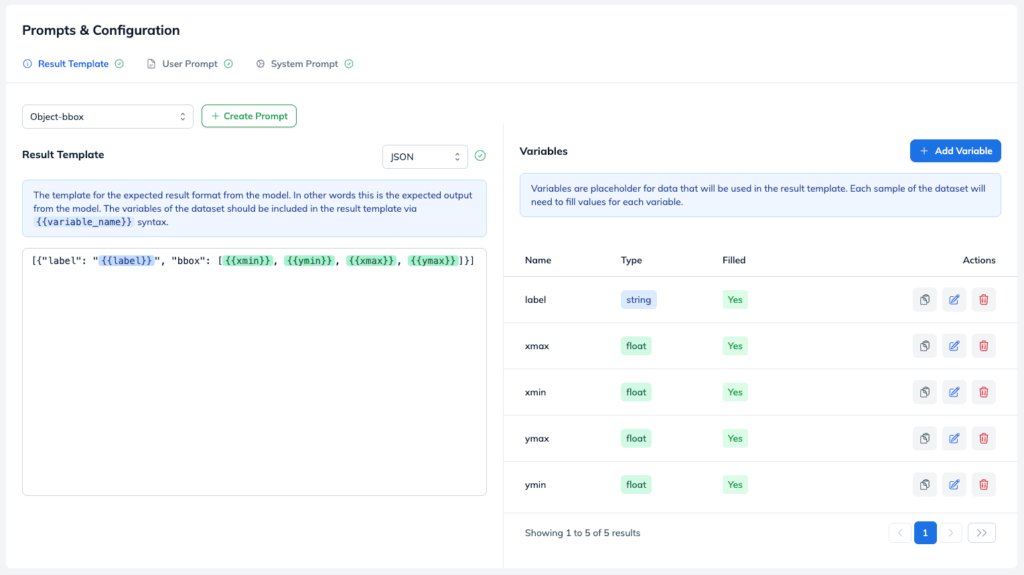
When everything in the dataset is configured, we can click on Dataset Preview in the header, and you should see a similar visualization:
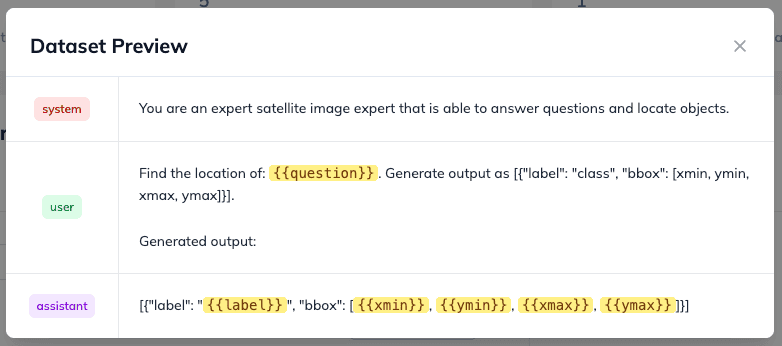
The last variable is a {{question}}. However for that we don’t need to set it up as a variable. We will just simply insert it as a JSON dictionary into the sample in the next step.
4. Automating the Dataset Upload via Ximilar API
Manually creating a thousand training samples through a web interface would be incredibly tedious. Instead, we can automate the entire pipeline using a Python script that pulls data from Hugging Face, uploads the images to the Ximilar CDN, and creates the structured samples for us.
The script is configured to automatically partition your data: 90% of the samples will be assigned for training, while 10% will be flagged as test data. This independent test set is critical for evaluating the model performance of your fine-tuned vision language model once training is complete.
🛠️ Get the Script: You can download the complete automation script directly from our GitHub repository.
Gathering Your API Credentials and IDs
Before executing the script, you need to collect your authorization token and a few unique identifiers from your Ximilar dashboard. You can pass these into your script directly or set them as environment variables:
- API_TOKEN (String): Your key used to authorize requests to api.ximilar.com. You can copy this directly from your main dashboard in Ximilar App.
- DATASET_ID (UUID): The unique identifier for your newly created dataset. You can find this string directly in your browser’s URL bar when viewing your dataset page.
- Variable IDs (UUIDs): Each of the template variables you created earlier (label, xmin, ymin, xmax, ymax) has its own unique ID. You can find these IDs listed right next to the variable fields in the dataset settings header.
Configure your environment or update your script configuration with these values:
WORKSPACE_ID = os.environ.get("XIMILAR_WORKSPACE_ID", "default")
DATASET_ID = os.environ["XIMILAR_DATASET_ID"]
DETECTION_LABEL_ID = os.environ["XIMILAR_DETECTION_LABEL_ID"]

API_KEY = os.environ["XIMILAR_API_KEY"]
VAR_LABEL = os.environ["XIMILAR_VAR_LABEL"]
VAR_XMIN  = os.environ["XIMILAR_VAR_XMIN"]
VAR_YMIN  = os.environ["XIMILAR_VAR_YMIN"]
VAR_XMAX  = os.environ["XIMILAR_VAR_XMAX"]
VAR_YMAX  = os.environ["XIMILAR_VAR_YMAX"]
With your credentials in place, execute your Python script. For this tutorial, I’d recommend limiting the download pool to 1,000 samples to keep processing fast while providing plenty of data for the model to learn from.
python vrsbench_grounding.py --limit 1000To ensure your data pipeline ran successfully, return to your dataset page in the Ximilar App. Scroll to the bottom of the page to find a comprehensive table listing all of your uploaded samples.
Click the Preview button (the Eye icon) next to any sample row. This opens an interactive visualization showing your system prompt, user prompt, and the parsed bounding box variables mapped perfectly onto your satellite image, confirming your data is pristine and ready for training.
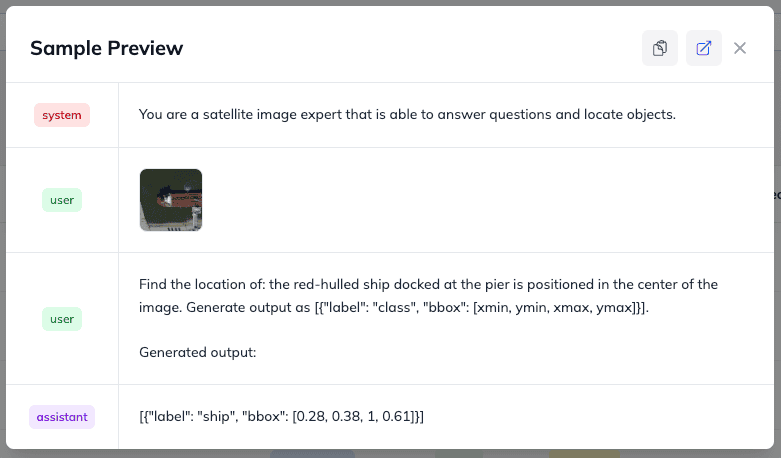
It looks similar to our Dataset Preview, but here all variables are filled, and the sample has an input image and question from the user.
5. Creating a Training Task & VLM Architecture
With your dataset successfully populated and verified, the final stage is to configure and launch your training run. In the Ximilar ecosystem, this configuration is called a Task. A Task acts as the parent control center for your training job, linking your datasets and defining how the model should behave.
Task Wizard
To make things easy, Ximilar provides a step-by-step Task Wizard. When you run through this wizard, the platform will have you review and set up your system and user prompts one more time. You should choose the same prompts and templates that you created for your dataset. This ensures that the global settings for your task align perfectly with the instruction format you established inside your dataset.
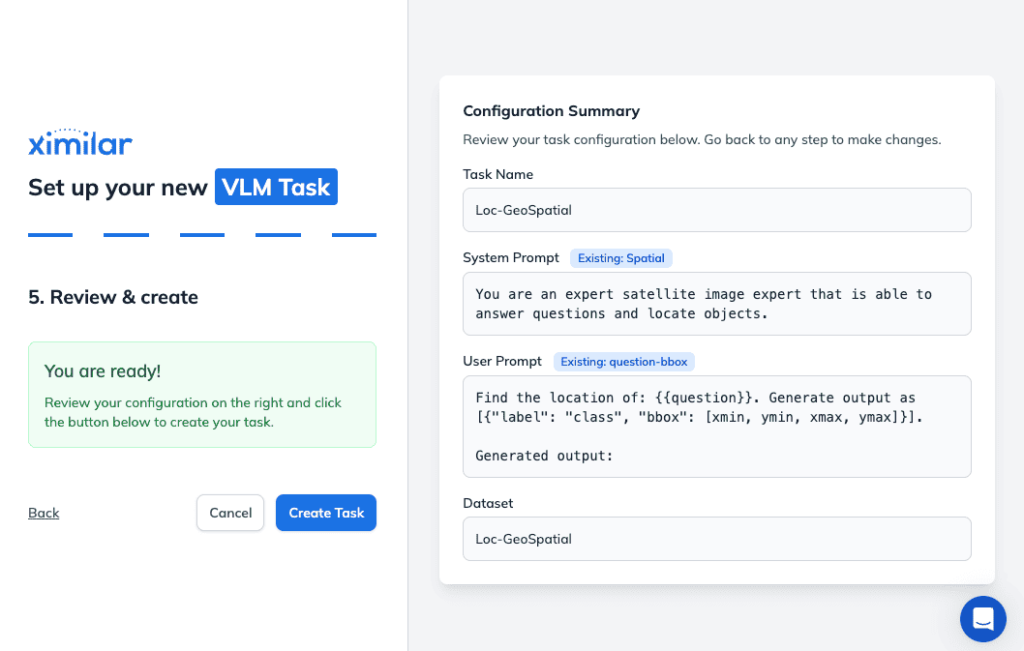
Once you complete the initial wizard, you will be directed to the main Task dashboard. This is where you can dive into the advanced settings to customize your model’s architecture and training hyperparameters such as batch size and learning rate.
- Selecting Your Foundation Model
Depending on your compute constraints and final deployment environment, you can pick from several cutting-edge, open-weights architectures:- LiquidAI/LFM2.5-VL-450M: An ultra-efficient, highly compact vision model. This architecture is a prime choice if you intend to run fast, cost-effective CPU inference post fine-tuning.
- LiquidAI/LFM2.5-VL-1.6B: A slightly larger variant of the Liquid AI model designed to optimize performance on lower-end or mobile GPUs.
- Google/Gemma-4-E2B-it: One of Google’s latest lightweight, instruction-tuned multimodal models, offering exceptional reasoning capabilities.
- Disabling Disruptive Augmentations
Before proceeding, expand the Advanced Options menu and turn off both Horizontal and Vertical Flipping.
Why disable flipping? Data augmentations like image mirroring are standard practice in classic image classification. However, because we are fine-tuning our VLM to map precise spatial bounding boxes (xmin, ymin, xmax, ymax), flipping the image will completely decouple the visual targets from the static coordinate values in your data, corrupting the fine-tuning process.
Fine-Tuning Techniques
With your model type selected and augmentations disabled, click the training button. By default, the platform uses LoRA (Low-Rank Adaptation), a parameter-efficient fine-tuning technique that adapts a pre-trained model without retraining the entire model.
LoRA fine-tuning freezes the original model weights and trains only a tiny, highly efficient layer adapter. This significantly reduces the number of model parameters that need to be updated and the memory usage during training. This efficient fine-tuning approach allows you to reach good model performance much faster, though fine-tuning a multimodal VLM will still take anywhere from a few minutes to a few hours depending on your queue position and dataset size. Techniques like LoRA and QLoRA fall under parameter-efficient fine-tuning (PEFT).
If your project scales down the road and you gather a massive data pool – ideally over 10,000 samples – you can always return to this dashboard to toggle on full model fine-tuning. This method trains all model parameters for absolute domain specialization using the pre-trained base model as a starting point. It, however, requires significantly more GPU compute and training time.
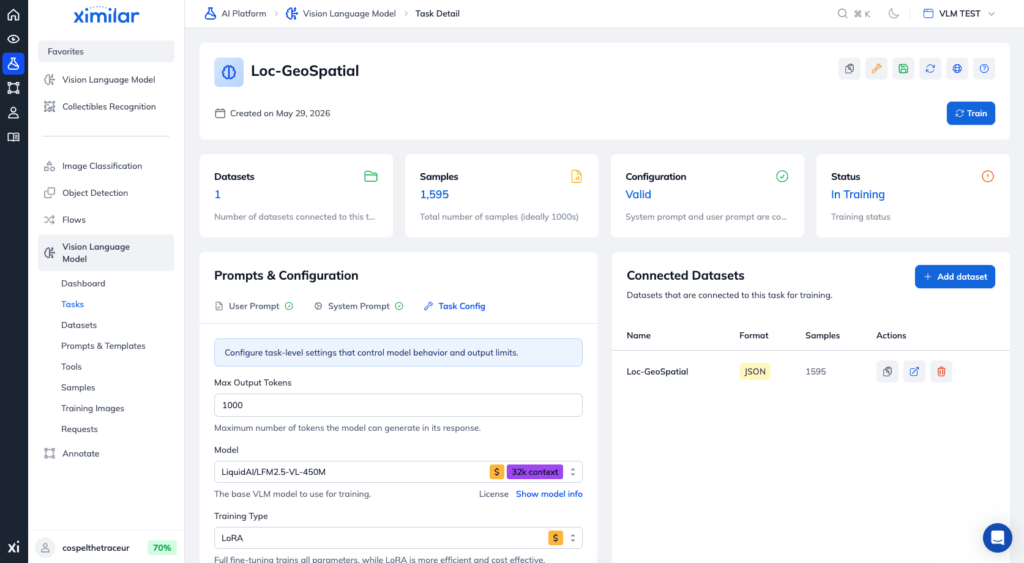
With your data parameters locked in, click the Train button. Because fine-tuning a multimodal vision language model requires substantial compute, a typical training run can take anywhere from a few minutes to several hours depending on your server queue position and dataset size.
6. Evaluating Your Fine-Tuned Vision Language Model – Metrics & Loss Function
The output from training is a new fine-tuned model with a specific version. Each training run will increase the version by one.
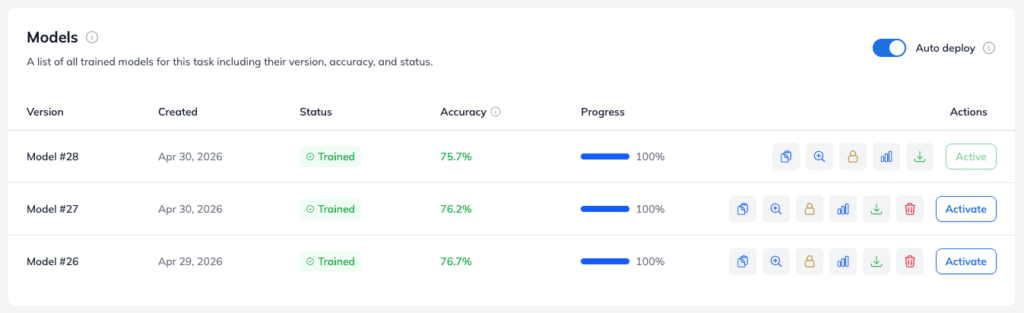
Once the fine-tuning process concludes, the platform generates a fresh model instance tagged with an incremental version number. Every unique training execution automatically bumps this version number by one, allowing you to easily track your experimental progress over time. To optimize infrastructure overhead, the Ximilar system preserves your last 5 trained versions out-of-the-box, ensuring you always have a reliable historical fallback if an experimental configuration underperforms.
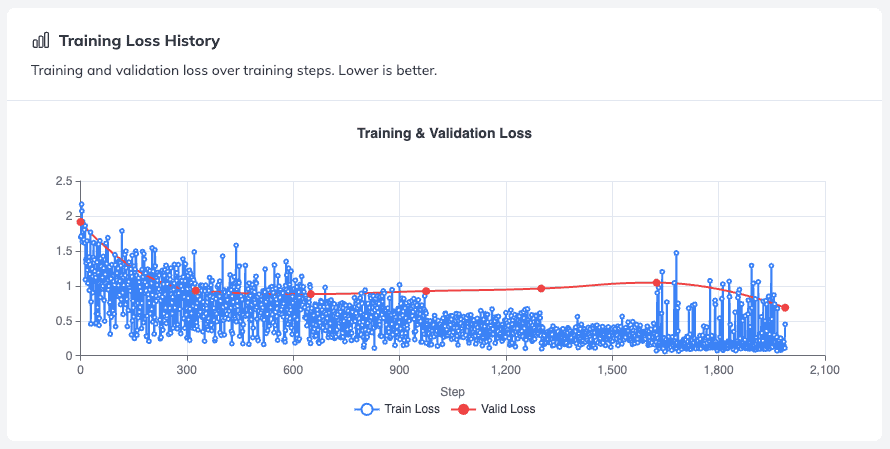
With your newly versioned model successfully compiled, you can immediately inspect its performance by clicking the Evaluation (Zoom/Magnifying Glass Icon) button on the task dashboard. The model overview page grants you full visibility into the training data diagnostics, including interactive graphs displaying the training and validation loss curves. Monitoring these curves helps you visually verify that your model is converging smoothly without overfitting to the training samples.
📝 Looking Ahead: Deciphering advanced visual metrics like Accuracy, MAE/MSE scores (for float vars), and other metrics for vision language models is a deep topic. To keep this guide focused entirely on setup and automation, I will break down how to read and interpret these evaluation metrics completely in another guide.
7. Deploy Offline or via API
Deploy Your Vision Language Model on Your Machine
On the Models section on the Task page, you can also click on the download button to get & run the vision-language model locally. Once you download the model zip file and unpack it, you should see several files:
- adapter_config.json – Contains the structural metadata and hyperparameters (like rank and alpha) used to define how the LoRA adapter plugs into the base model.
- adapter_model.safetensors – Stores the actual trained adapter model weights in a secure, fast-loading, and efficient file format.
- chat_template.jinja – Defines the formatting rules (using Jinja code) that turn raw conversational text into the specific prompt structure the model expects to see.
- processor_config.json – Configures how multimodal inputs (visual and textual data combined) are preprocessed before being fed into the model.
- tokenizer.json – Contains the complete, mapped vocabulary dictionary used to break down raw text into numerical tokens that the AI can understand.
- tokenizer_config.json – Sets the operational rules for text processing, such as handling special tokens, padding, truncation, and identifying which tokenizer class to load.
You can try the following script/repository that we prepared for you:
https://github.com/Ximilar-com/vlm-scripts/tree/main/transformers
https://github.com/Ximilar-com/vlm-scripts/blob/main/transformers/models/LFM2.5-VL-450M/run.py
The platform can also export the vision language model in different formats – like GGUF for the llama.cpp system. For this model, I will use a base HuggingFace Transformers library with PEFT (for LoRA adapters) format called .safetensors. The script can be run via the following command:
PYTORCH_ENABLE_MPS_FALLBACK=1 uv run --project transformers \
    python transformers/models/LFM2.5-VL-450M/run.py \
    --model_path ./path-to-model-folder/ --images photo.jpg \
    --system_prompt 'You are a satellite image expert that is able to answer questions and locate objects.' \
    --user_prompt 'Find the location of: the small ship is located near the middle of the image. Generate output as
  [{"label": "class", "bbox": [xmin, ymin, xmax, ymax]}].

  Generated output:'
The PYTORCH_ENABLE_MPS_FALLBACK env is set up because I ran this script on MacOS. Of course you can run it also on Windows or Linux and with a bit more work also on smartphone device. The output from this script is following:
============================================================
  Inference Configuration
============================================================
  Model ID:           LiquidAI/LFM2.5-VL-450M
  Model path:         ./model/
  Model type:         LoRA adapter
  Device:             mps
  Dtype:              torch.bfloat16
  Max tokens:         256
  Temperature:        0.0 (greedy)
  --- Image Processor ---
  Image tiling:       True
  Min image tokens:   64
  Max image tokens:   256
  Auto resize:        True
  --- Images (1) ---
  Image 1:            512x512
  --- Prompts ---
  System:             You are a satellite image expert that is able to answer questions and locate objects.
  User:               Find the location of: the small ship is located near the middle of the image. Generate output as
  [{"label": "class", "bbox": [xmin, ymin, xmax, ymax]}].

  Generated output:
============================================================

Output:
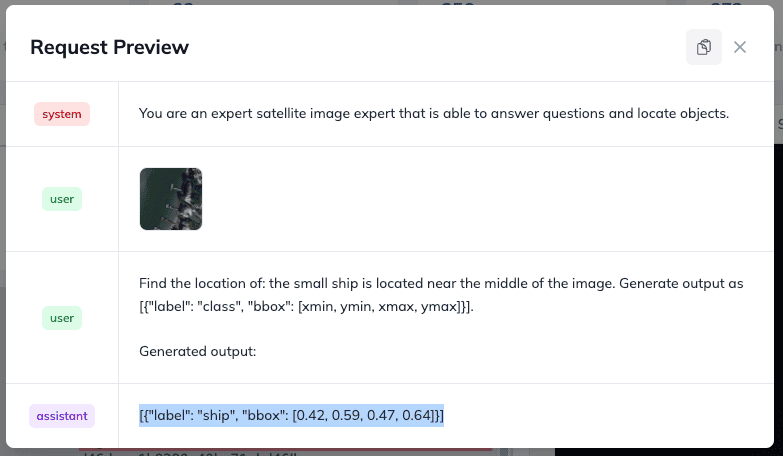
[{"label": "ship", "bbox": [0.42, 0.59, 0.47, 0.64]}]
Calling a Ximilar API for inference
If you don’t want to use the VLM locally, you have the option to call and test the model via our API async endpoint. Of course, similar to OpenAI, the system bills you per token.
It’s based on asynchronous requests that you can submit and retrieve with REST. Our API documentation will guide you through it step by step. Or you can submit/test it via Ximilar App under Vision Language Models: Requests.
We will test the following image and ask where is the location for the following snippet: “the small ship is located near the middle of the image”.
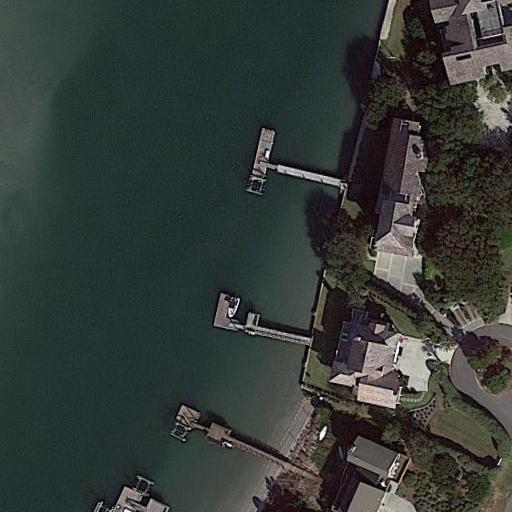
And the agent outputs coordinates that are correct! -> [0.42, 0.59, 0.47, 0.64]. We successfully fine-tuned the LLM with vision capabilities on a small subset of samples for satellite images. Of course you can create a more advanced fine-tuned model on your own custom dataset whether it’s related to e-commerce, automotive, healthcare or real estate. We will look at real estate in one of our following blog posts.
Fine-Tuning Open-Weights VLMs for Cost-Effective Local Inference
As foundational language models grow larger, companies are finding themselves trapped under skyrocketing per-token infrastructure bills. The reality is that most enterprise workflows don’t require a massive, multi-billion-parameter model that demands an entire data center and a dedicated energy grid to run. Instead, they need a streamlined, specialized vision language model that executes efficiently on everyday, accessible hardware.
By leveraging the Ximilar platform, you take your first major step toward breaking free from commercial cloud dependencies and slashing your inference overhead. Fine-tuning a highly targeted, open-weights VLM on your proprietary data set consistently yields superior accuracy for your specific application compared to relying on generic, one-size-fits-all models from OpenAI, Anthropic, or Google. So apart from cutting costs, you are building a proprietary asset.
Whether you are looking to optimize your training task configuration, architect a custom data pipeline, or deploy your fine-tuned vision language model locally, the Ximilar team is here to support you. Our platform was custom-built to turn complex computer vision bottlenecks into seamless, scalable solutions.
Ready to transform your workflow? Get in touch with our AI experts today, and let’s discuss how to bring your unique application to life. Let’s build your custom AI pipeline!

Tags & Themes
Related Articles

Wake Up, Collector: Cyberpunk TCG Card Recognition Is Here
Ximilar’s card AI now recognises Cyberpunk TCG cards – name, set, and rarity from a single scan. Test it in the App, via API or the demo.
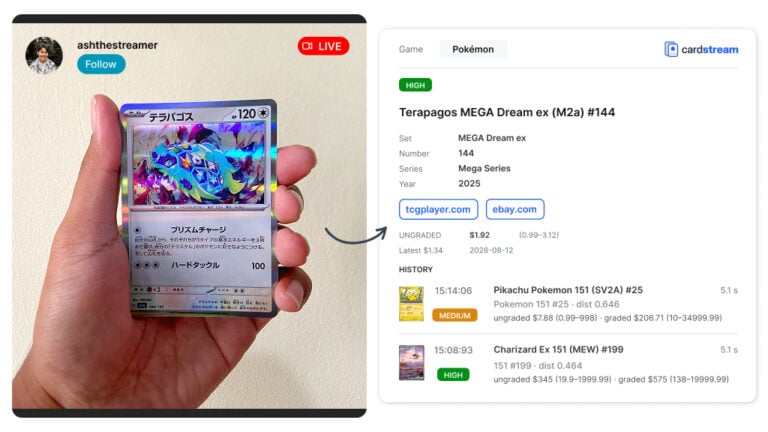
Cardstream.ai: Open-Source Card Scanner for Live Streams
An open-source card scanner for live streams. Cardstream identifies TCGs like Pokémon and sports cards in real time from your video.

Recognize Every Palworld TCG Card in English and Japanese
Ximilar’s card AI now handles Palworld card recognition in English and Japanese, from a single scan. Test it in the App, via API or the demo.