 Product Description
  Price Search
  Combine LLMs & Vision
  Fine-tune & Deploy
  Instance Segmentation
 Getting Started with Ximilar App: Plan Setup & API Access
Ximilar App is a way to access computer vision solutions without coding and to gain your own authentication key to use them via API.

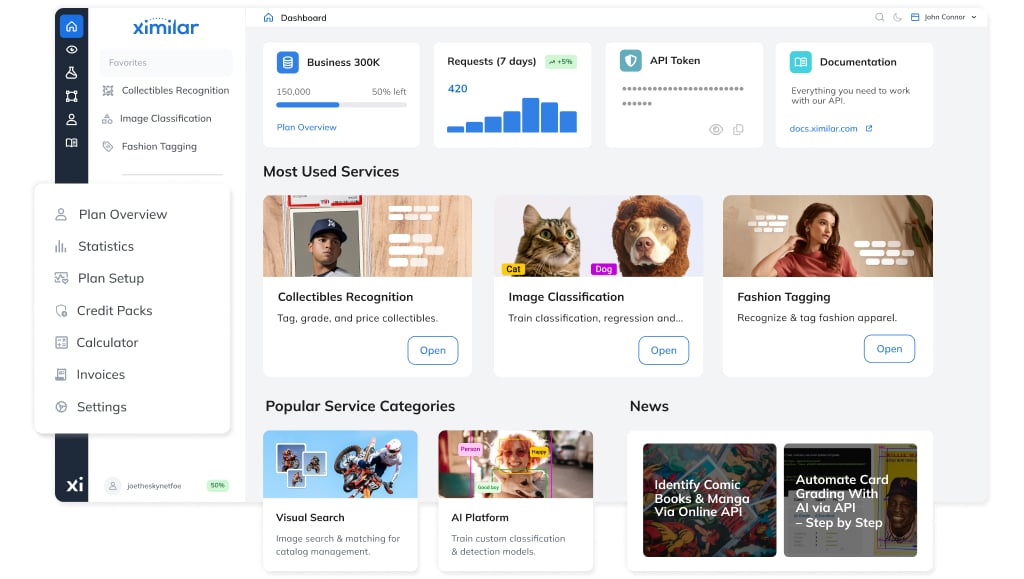
The Ximilar App provides easy access to a visual AI platform for image analysis and manipulation. Whether you use pre-trained models or build your own, the platform is designed for easy integration. It works on a SaaS/MLaaS (Software as a Service) principle and is GDPR-compliant.
With the app, you can test available solutions, manage your user plan, and authenticate API requests using your token. In this guide, I’ll walk you through the first steps: registering, setting up your plan, and obtaining the authentication token. Let’s get started!
Key Functions of Ximilar App
The Ximilar App serves four core functions:
- Plan management – Set up your plan, obtain your authentication API token (a unique identifier used to authenticate requests to the API), and monitor API credit usage.
- Service access – Test AI models using drag-and-drop forms or integrate them via preset API requests. Each service shows the exact request and response.
- Model development – Train and deploy custom computer vision models on Ximilar platform without coding.
- Data management – Upload and label training data, and manage image collections for visual search.
AI Solutions Available in the Ximilar App
The Ximilar App offers a range of AI-powered solutions, deployable immediately via the Ximilar API.
Recognition & Tagging
AI-powered detection and classification enables deep tagging of various visual data, ranging from e-commerce product photos to CCTV threat detection. This recognition API accepts PNG, WEBP, and JPEG formats. The number of available models is constantly growing – you can browse them on our website or in the App.
Visual Search
Visual search covers multilingual text-to-image search, similarity search for product recommendations, reverse image search, and duplicate matching. Learn more about the technology here, or explore fashion search and home decor solutions directly.
Image Tools
We offer AI-powered tools for image enhancement and manipulation, including GAN and Multiplying Image Upscaler for high-quality upscaling and AI-driven Background Removal for bulk image processing.
Other Ready-to-use AI Tools
For instance, we provide text-based AI solutions, such as OCR or automated product descriptions.
Build Custom Computer Vision Models Without Coding
Ximilar App also enables users to create and deploy custom computer vision models – no coding or deep machine learning expertise required. You can build models for:
- Custom image Recognition & Tagging – Categorizing and labeling visual content.
- Object Detection – Identifying specific objects in images.
- Image Regression – Predicting values such as age, quality ratings, or other numerical estimations.
These models can be easily integrated into your system via the Ximilar API.
Now, let’s go through the first steps in the app.
1. Log in to the Ximilar App
To use our API, you first need to log in or register at app.ximilar.com. Registration is free and does not require payment information. Simply enter your email address and confirm your registration via the email we send you. You can also sign up using your Google account.

Upon registration, you’ll automatically receive a unique API token to authenticate your API requests.
2. App Navigation
The first thing you see after entering the Ximilar App is the Dashboard, which features credit usage, a copy-ready token, weekly traffic insights, and documentation links – the fastest way to explore new features and discover new API endpoints as they launch.
App navigation is split into two menus. The primary sidebar links to Services, the Platform, Annotate, My Plan, and the Help Center. Once you select favorite services, they will be pinned at the top of your main menu for quick access.
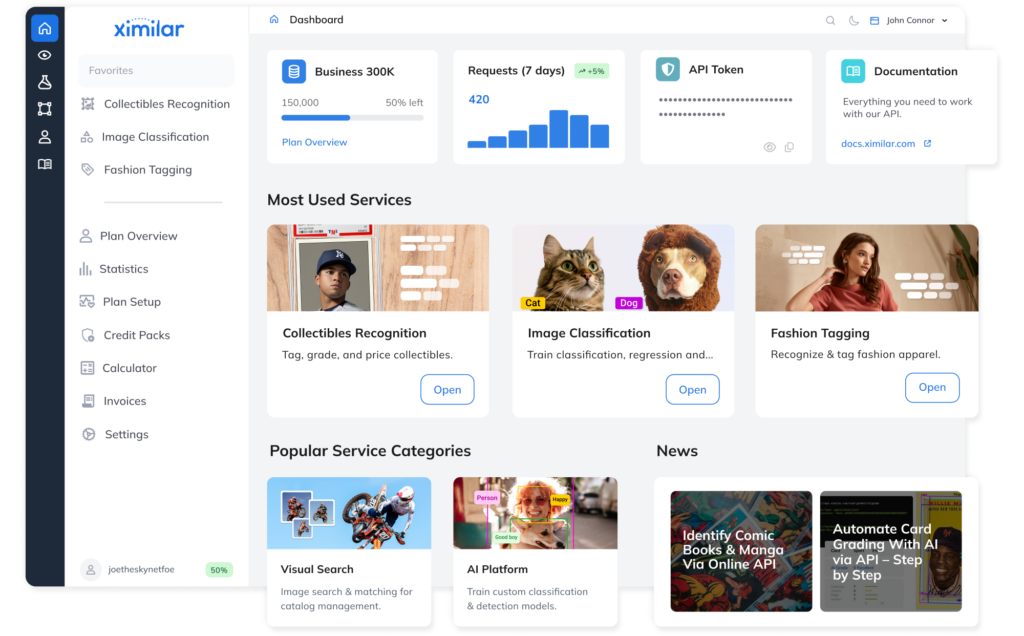
You can search the whole app using full-text search or ask for assistance via live chat in the bottom right corner.
3. Set Up Your Plan
Your plan depends on two factors, both of which our calculator considers:
- The solutions you need – Our solutions fall into different complexity tiers. You can explore & test them both on our website (via limited demos) and in the Ximilar App and find detailed information on our pricing page and in the API documentation.
- Your required API credit supply – Every API request consumes a certain number of credits, depending on the operation. You can find the full list of operations and their credit costs on our Pricing page, along with their documentation links.

Use the Calculator for Automatic Setup
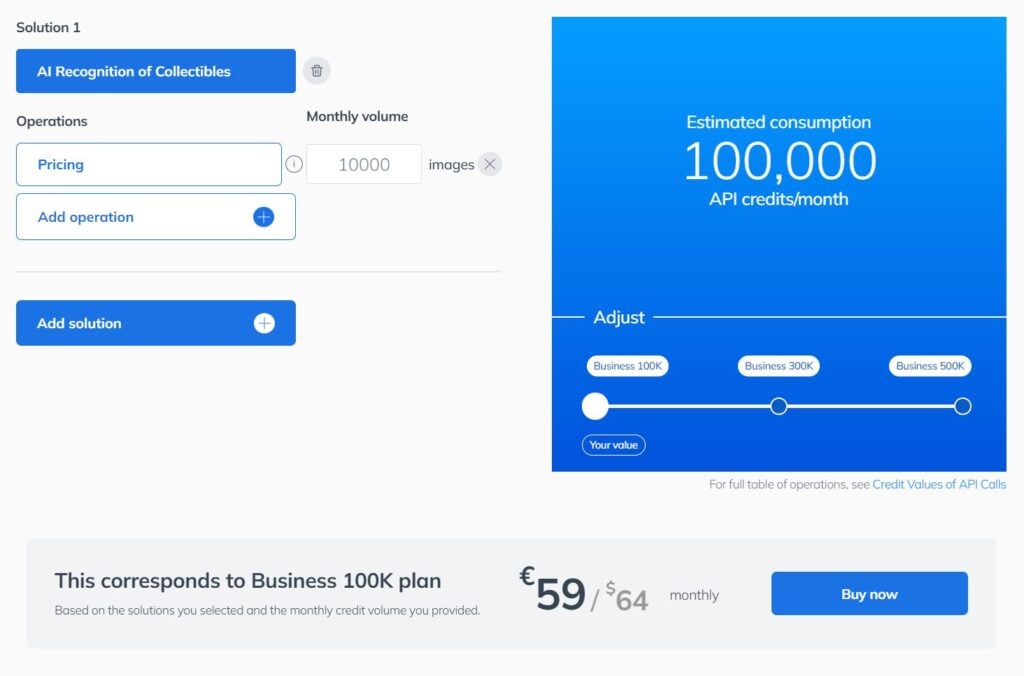
The calculator suggests the right subscription plan based on your solution choice and expected volume. Follow these steps:
1) Open the calculator in the Ximilar App (or on the pricing page).
2) Choose your solution and operation – For example, AI Recognition of Collectibles and Pricing (price search for trading cards).
3) Enter your estimated monthly volume – Input the number of images you expect to process per month. The tool recommends the best plan for your expected API credit consumption.
Clicking “Buy now” pre-selects a recommended plan setup in the app, where you can review solutions, features, limits, and monthly credit supply before checkout.
For example, here I selected the solution AI Recognition of Collectibles and estimated I will need to retrieve the price for 10,000 images (collectible items) per month. The calculator suggested the Business 100K plan. I received a direct link to the recommended plan.
Finish the Setup at the Plan Setup Page
If you already know which solutions and how many credits you need, or if the calculator has suggested a plan, head to the plan setup page. There, you can:
- Review the included solutions, features, and limits.
- Proceed to checkout, provide your invoicing details, review the price and VAT, and complete the payment via Stripe.

Check Your Plan Overview
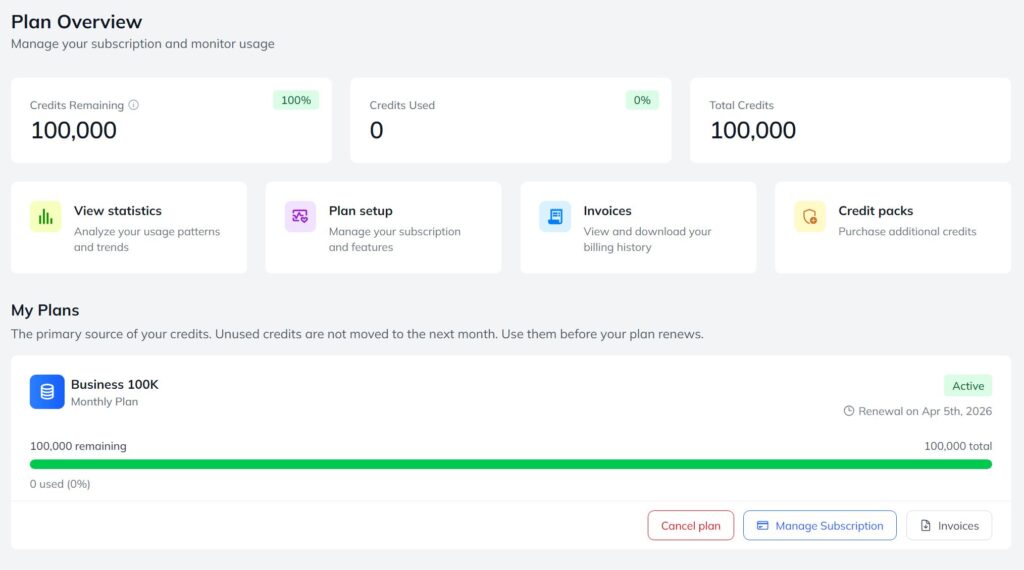
After subscribing, the plan overview shows a progress bar for the remaining API credit balance. A tag at the bottom of the sidebar also reflects your credit consumption at a glance. You can monitor API credit usage in detail via statistics.
Tip: Extend Your Credit Supply with Credit Packs
Credit packs are ideal for large one-time batches. They are consumed only after monthly credits run out and never expire, making them a reliable buffer for traffic spikes.
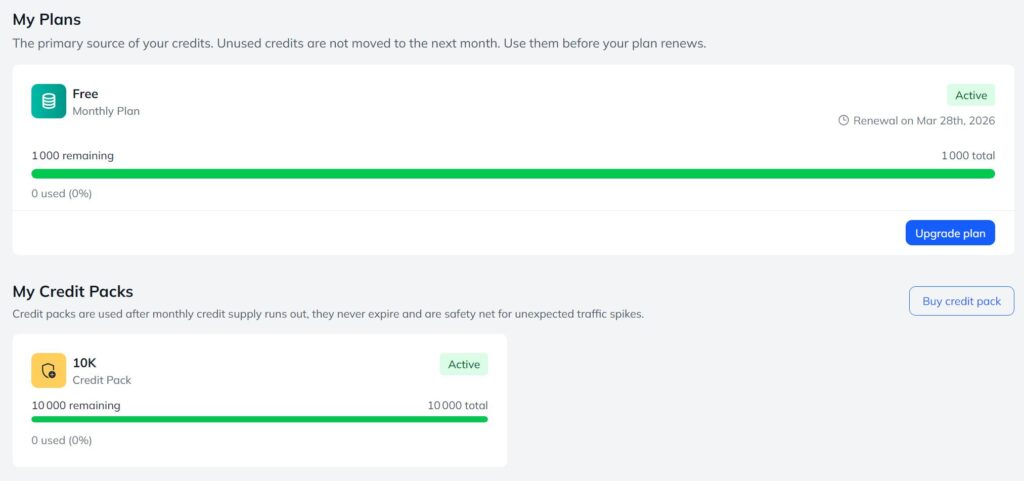
However, if you anticipate steady monthly usage, choosing a slightly higher monthly credit plan is the better option. The more credits included in your subscription, the lower their overall cost, making it a more efficient long-term choice. In the plan setup, you can see the percentage you save by opting for a higher subscription tier.

We are always here to answer your questions through the contact form or chat, and can also do the setup for you.
4. Locate Your API Token
Your token is the key to the Ximilar API. It is available directly on the main dashboard, as well as all service dashboards, with one-click copy. Keep it private — it is your authentication credential for all API calls. Optionally, you can generate a new token if needed.

5. Integrate via the API
Below, I show the basic commands for Python. For tips about cURL requests, I recommend checking out the article How to Automate Pricing of Cards & Comics via API.
Install Python and Required Libraries
Before using the Ximilar API, make sure you have Python 3.6 or later installed. Some systems already include Python, but if you’re unsure, you can check by running this command in your terminal, command prompt, or shell:
python --version && pip --versionA correct output should look like this:
Python 3.9.18
pip 23.1 from /Users/yourname/env/devel/lib/python3.9/site-packages/pip (python 3.9)
If you don’t have Python installed, follow this tutorial on RealPython, which contains installation steps for Windows, macOS, and Linux. Once Python is ready, install the required libraries using pip:
pip install --upgrade argparse requestsNow you’re all set to start working with the Ximilar API.
API Requests and Responses
All services, including their endpoints, command examples, and first steps with the Ximilar API, are described in detail in the API documentation. We recommend starting with the Quickstart guide.
Using Request Examples from the Ximilar App
If you test a service in the Ximilar App, the bottom of the testing page shows exactly how your request was structured (in cURL, Python, and JavaScript) as well as the corresponding response in JSON format.
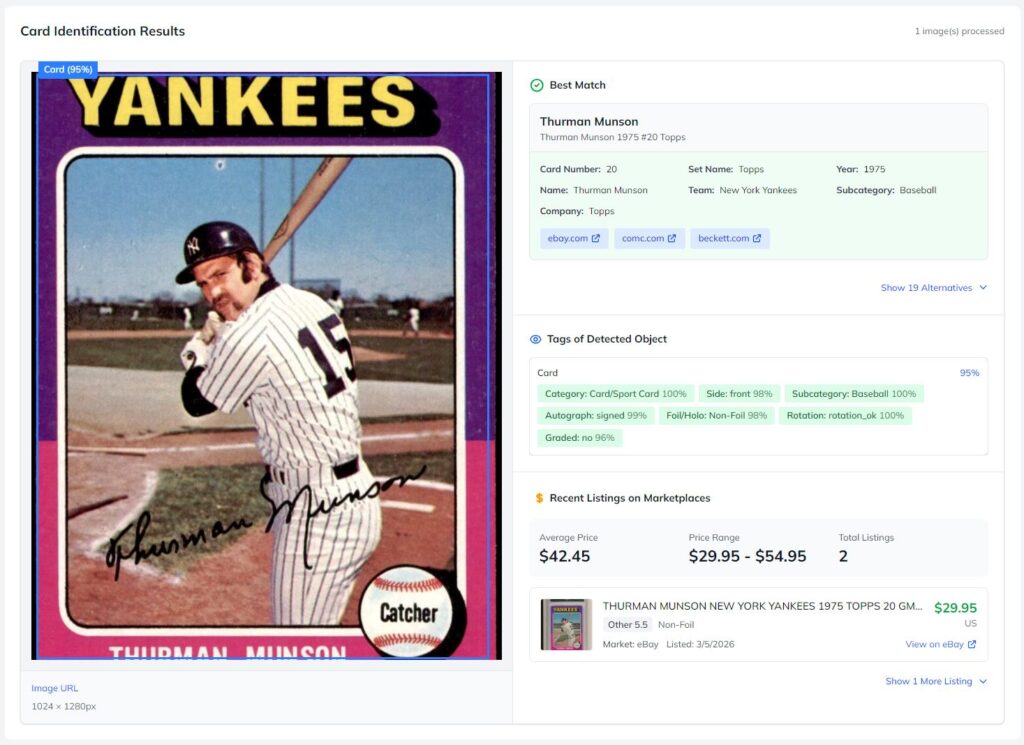
You can use these examples directly as a reference when building your own API calls.

Example: Pricing Trading Cards via REST API
This script sends an image of a trading card to the API for identification and pricing:
import sys
import requests
import pprint

url = "https://api.ximilar.com/collectibles/v2/tcg_id"
headers = {
  "Content-Type": "application/json",
  "Authorization": f"Token {sys.argv[1]}"
}
data = {
  "records": [
    {"_url": sys.argv[2]}
  ],
  "pricing": True
}

response = requests.post(url, headers=headers, json=data)
pprint.pprint(response.json)
How it works:
- The script takes two command-line arguments: your API token (
sys.argv[1]) and the card image URL (sys.argv[2]). You can replace these with direct variable assignments if needed. - It sends a POST request with the image URL to the API.
- The
"pricing": Trueparameter requests price details. - The response, including the card’s details and estimated price, is printed using
pprint.
Conclusion
We understand that not everyone wants to handle API integration on their own, and that’s completely fine. If you prefer a hassle-free setup, we can take care of everything for you – from configuring your plan to integrating our solutions into your workflow. Just let us know, and we’ll be happy to assist.
If you have any questions or need help along the way, feel free to reach out. I also recommend exploring our articles covering advanced features, best practices, and API integrations.

Zuzana Raidová
Head of Marketing
Zuzana is a marketing specialist, biologist, and illustrator addicted to reading and hiking. At Ximilar, she takes care of web content and communication, tries to keep the articles engaging, and the office temperature low. She likes science, kung fu movies, and rain.
Tags & Themes
Related Articles
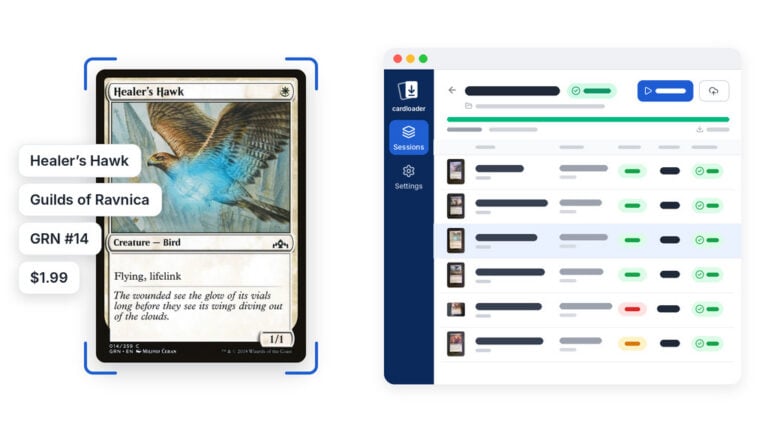
Meet Cardloader.ai: Free Trading Card Scanner Software for PC, Mac and Linux
Cardloader.ai is free, open-source trading card scanner software for Windows, macOS and Linux. It identifies TCG cards, sports cards, comics and slabs from a folder or a document scanner.

Wake Up, Collector: Cyberpunk TCG Card Recognition Is Here
Ximilar’s card AI now recognises Cyberpunk TCG cards – name, set, and rarity from a single scan. Test it in the App, via API or the demo.
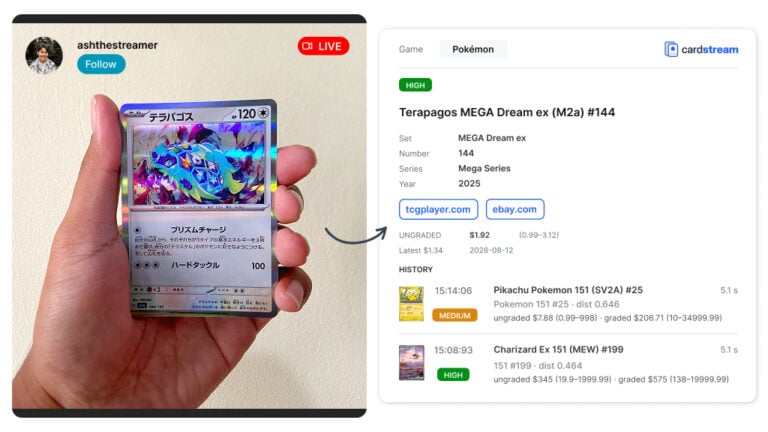
Cardstream.ai: Open-Source Card Scanner for Live Streams
An open-source card scanner for live streams. Cardstream.ai identifies TCGs like Pokémon and sports cards in real time from your video.